FAQs & common errors
**How to add URL button in WhatsApp Channel**
WhatsApp Official API doesn’t support more than one URL button in a Send Message node, you can try:
- 1.print out the URL using text message, it’s clickable if you don’t mind exposing the link
- 2.use a third-party short URL service to hide the link if you don’t want to expose the link
- Use WhatsApp template message (in the flow, go “Contents” - “Message Templates”)
**User-uploaded Media**
By default the user uploaded media is stored on Messagingme.app servers and can be accessed via a link pointing to that media location on Messagingme.app servers. It is stored for 24 hours.
It is encouraged to save your data on your data stores to ensure availability when needed.
Also, Messagingme.app offers integration with Cloudinary cloud storage. It is free to sign up for their basic plan. Once we have the feature available, you will be able to automatically save user data to your Cloudinary account using the “action to transfer” step.
**Set Variable Value is Not Working**
The set variable “input value” feature does not support math operation. Let’s say the user need to calculate “number + 1”,
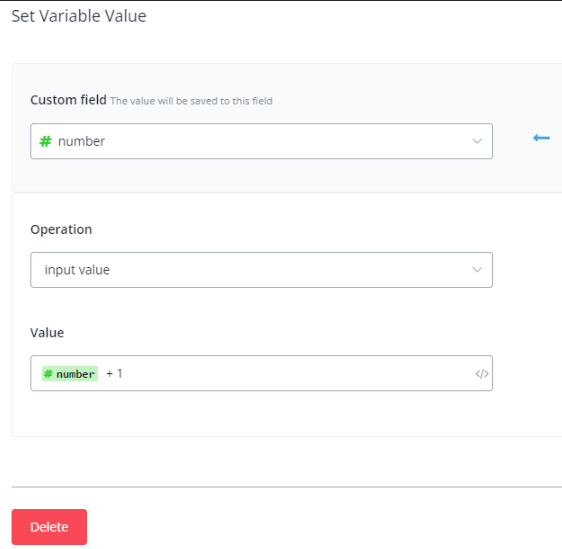
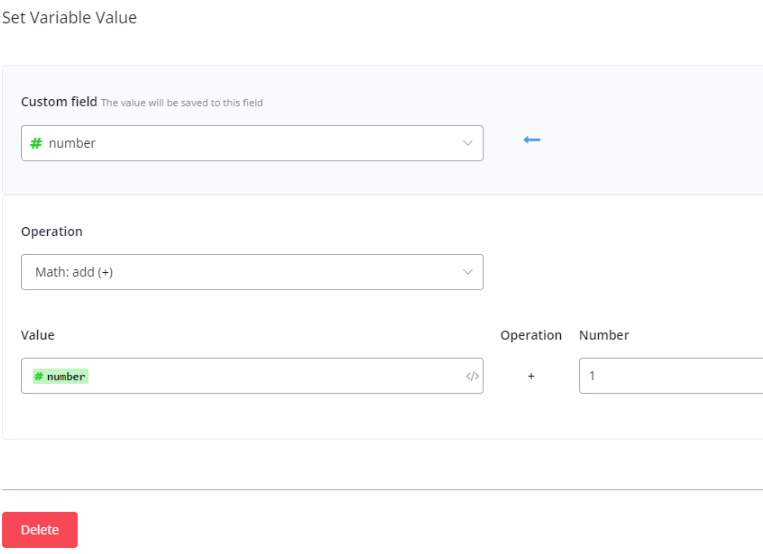
So if the user wants to perform a calculation of “number +1” the correct feature to use is “math: add (+)”. Please refer to the image below;
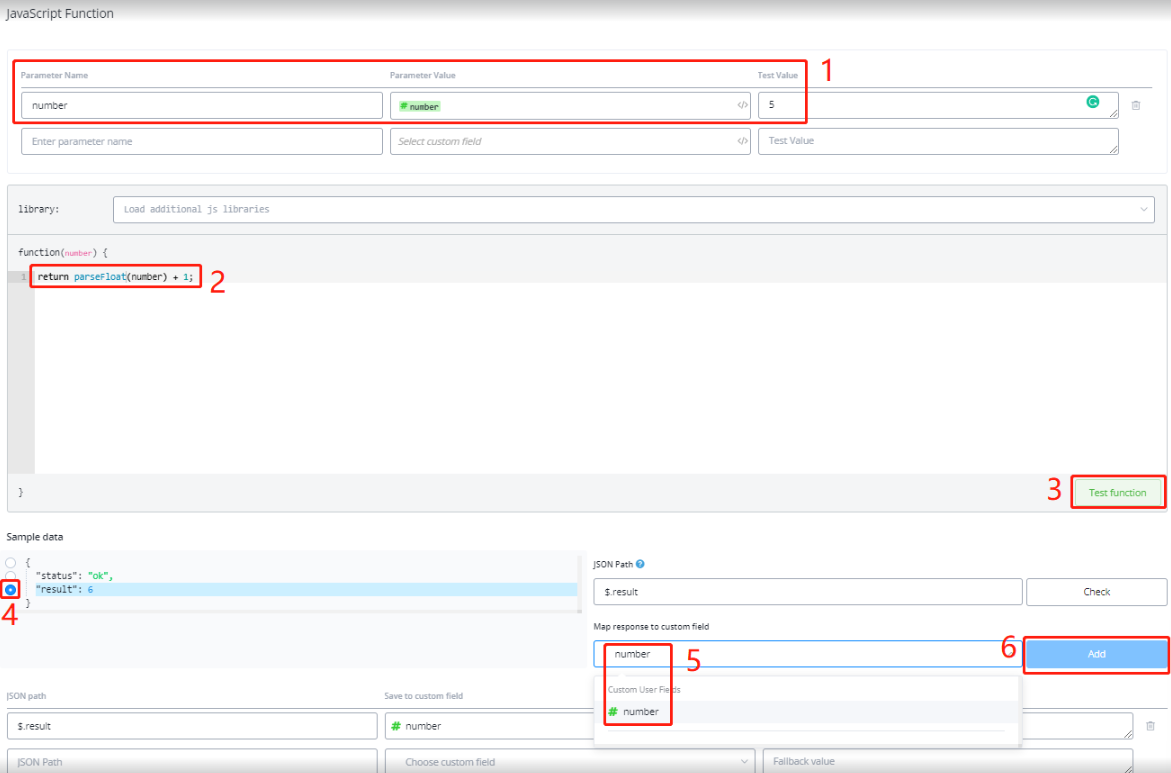
Also, if you want to perform a higher number of calculations then we would suggest to use “JavaScript Function”.
**Workspace Time Zone Setting**
In workspace settings, under workspace name, the time zone dropdown includes time zones along with city names.
The city name is only for reference to help you select the correct time zone. Please do not worry about which city name is saved. As long as the time zone is correct, should be fine.
**Inbound webhook, SMS/Voice bot not working?**
If your SMS or Voice inbound webhook creates a user but does not send the flow to the user.
One possible reason is that this phone number has been connected to another workspace.
When you disconnect your Twilio account in a workspace, also remember to disconnect the phone number. Otherwise, even the number can be successfully connected to a new workspace, the bot won’t work.
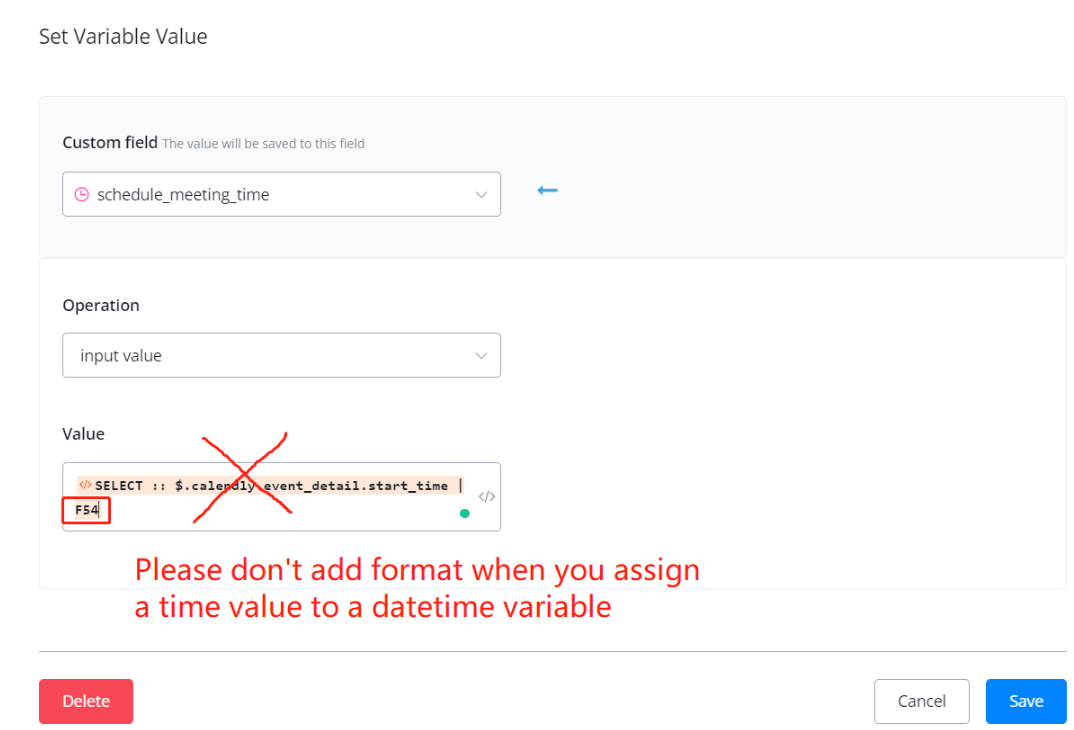
**Why time value is incorrectly saved?**
Only add format when you need to display a date/time value.
While setting up, using a display string will cause an error and the action will not trigger as intended.
**The URL provided is not whitelisted for messenger extensions - 2018062 (#100)**
Are you using Question Step - Date/Datetime step in Agency Account with white-label domain?
If yes, you can choose one of the following solutions to solve this:
- Reconnect your Facebook account by heading to the Facebook channel on your dashboard, then hit the “Reconnect” button.
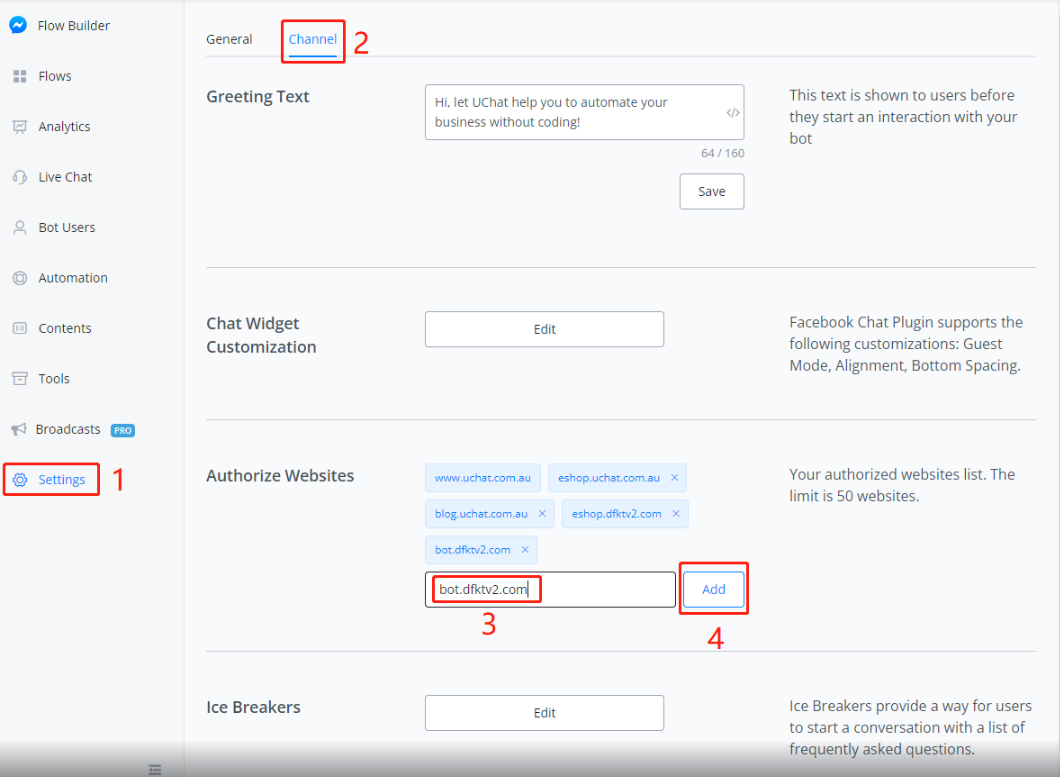
- if the above solution didn’t add the domain automatically, please manually add “bot.dfktv2.com” to your whitelisted website in your Facebook bot, see the screenshot about how to implement it:
**Why Facebook bot (chat widget) didn't respond?**
For privacy issues, even users login as their own Facebook profiles. Facebook sends their first one to two messages still with a Guest profile to Messagingme.app.
User IDs of guests and real users are different. This causes a problem that, Facebook sends both a guest ID and real user ID to Messagingme.app for the same person and it doubles the conversation.
Unfortunately, this issue has been there for a long time. Messgaingme.app has tried to do something to improve this. We made an improvement to detect and delete a fake guest. This solves the double conversation issue but results in a new issue that the bot sometimes take 2-3 messages to activate the real conversation.
Our Messagingme.app support bot is suffering from the issue as well.
**Why voice bot didn't call users**
If you are using an inbound webhook to generate a voice bot user and call the user, the user is successfully created but the phone call didn’t fire, please check your geo settings in your Twilio account. Sometimes you will need to unlock the geo restriction to call a certain number.
**What will happen when I exceed the bot user limit on the workspace?**
First of all, Messagingme.app has an “auto clean up bot user” feature which can help you control the bot user amount and prevent exceeding the “bot user limit” on your workspace.
In the case you didn’t set up any auto clean up:
if your workspace is an LTD workspace:
- your bot users will be automatically cleaned up based on their last interaction time, the oldest first.
if your workspace has a monthly or yearly subscription:
- your workspace bot user limit will be increased automatically and therefore, your subscription fee increased.
**Multiple language support**
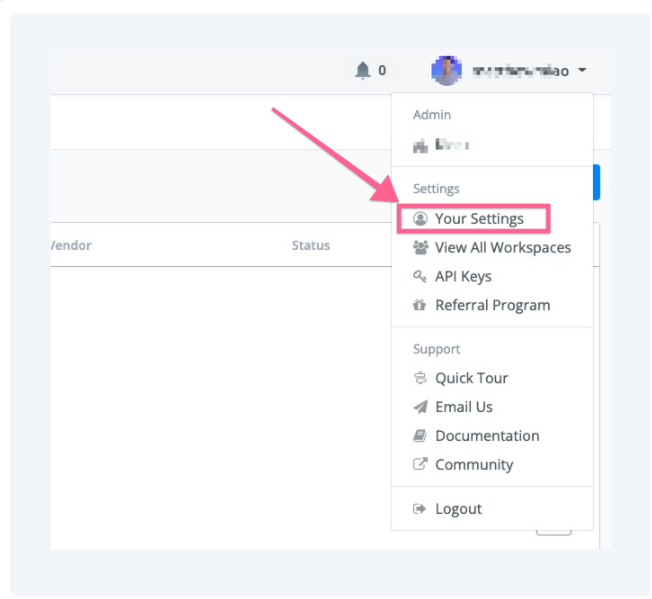
Messagingme.app support multiple languages, and you can find the multiple language settings in your user profile as per screenshot below
**What is a Bot User?**
A bot user is anyone who interacts with your chatbot via DMs or comments.
**Is the bot user limit per bot or for the workspace?**
Bot user limit is implemented on the workspace level and the resources (X number of users) are shared between all the chatbots created under the same workspace.
However, a secondary bot user limit can be set on per chatbot basis. This ensures that a chatbot does not consume more resources then allocated or intended.
For example;
you have a workspace with basic business plan and 1 additional chatbot. The resources you have are as follows;
2 chatbots (FB & Insta) + 1000 bot users
You can setup user limits on both chatbots to ensure both chatbots only consume assigned number of bot users.
The process to set-up a rule to limit chatbot to X number of bot users is very simple and straightforward. We are using Facebook chatbot as an example but you should be able to follow the same steps for any chatbot channel you are using in your workspace.
When you open a Facebook chatbot, click on settings right at the bottom left corner (as shown in the image), then the first section is “Bot Users Limit”.
Once you decide and select a number, please click save in order for the settings to take effect.
**Will the bot stop when reaching limits?**
Unlike other chatbots in the market, Messagingme.app actually cares about you.
Once your workspace consumes all bot user limits, the chatbots will not stop working. Rather Messagingme.app system will automatically start deleting old users with the longest last engagement duration to accommodate new users who could be your High Intent Leads.
So, your Leadgen, Customer Support and Ecommerce chatbots will never stop working.
**How to set up rules to automatically remove the bot user?**
The process to set-up a rule to automatically remove bot users is very simple and straightforward. We are using Facebook chatbot for an example but you should be able to follow the same steps for any chatbot channel you are using in your workspace.
When you open a Facebook chatbot, click on settings right at the bottom left corner (as shown in the image), then the second section is “Bot Users Auto Cleanup”. This is where you will set the number of bot users you want to automatically delete on daily basis.
Once you select a number, it also give your the option to set a user condition to be more specific.
**Business plan - how many comments will be responded?**
Messagingme.app does not operate on the per conversation model but rather per subscriber model. Any person who interacts (DM/Comment) with the Chatbot becomes a subscriber/bot user.
A standard business plan has 1000 bot users limit. This includes people who interact with your chatbot via DM messages and comments. This limit is shared between all the chatbots created in a workspace.
The limit of 1000 bot users is on workspace level instead of chatbot level. So if you have 2 chatbots in your workspace (e.g 1 Facebook chatbot + 1 WhatsApp chatbot), both chatbots will share the same user limit for the workspace which is 1000 in total for both chatbots.
A chatbot will continue to engage with users/leads/customers via DMs or comment replies till the count reaches 1000 bot users.
After the count reaches 1000 users, the bot will not stop but will rather start deleting the first user with the highest last interaction time to accommodate the new user.
**Server IP list to white list**
For some service, you might need to whitelist Messagingme.app servers. here is a list of our current server IP address:
Full ip ranges (recommend):
For some service, you might need to whitelist Messagingme.app servers. here is a list of our current server IP address:
Full ip ranges (recommend):
45.32.188.0/2245.32.240.0/2145.63.24.0/2145.76.112.0/2045.77.48.0/2245.77.232.0/21103.43.72.0/22104.156.232.0/23107.191.56.0/23108.61.96.0/24108.61.168.0/23108.61.184.0/23108.61.212.0/23108.61.251.0/24139.180.160.0/20139.180.176.0/21149.28.160.0/19207.148.80.0/21if you need to add by ip only, use the following ip address list
149.28.162.222,45.77.235.71,149.28.175.203,45.76.112.23,45.32.189.4,45.77.238.142,149.28.187.37,45.77.235.110,45.32.241.149,45.77.235.182,149.28.165.23,139.180.165.100,45.77.48.20,149.28.161.111,139.180.167.157,149.28.179.119,45.77.239.186,139.180.175.20,108.61.168.104,108.61.185.7,45.63.31.78,45.77.50.130,45.63.31.21,207.148.86.36,45.63.25.226,149.28.178.130,45.32.190.87,45.76.115.233,207.148.84.156,107.191.56.88,207.148.84.7,149.28.160.120,149.28.163.168,139.180.175.145,45.77.50.202,149.28.182.248,45.76.118.88,45.32.191.136,149.28.160.237,149.28.171.167,45.76.112.89,45.63.31.103,207.148.85.155,149.28.170.22945.76.115.126139.180.182.237149.28.181.91149.28.173.125**Why your bot is sending duplicate messages?**
So if your bot is sending duplicate message, it might be the following reasons:
For messenger channel, It’s possible you connect more than 1 app in your page advance settings. Please make sure you only connect Messagingme.app to your page.
For WhatsApp cloud API, it’s possible that you used the same webhook URL in two different apps in your Facebook Developer account.
That’s the most common reason, please double check above points, if you still have questions, do send email to our support.
**Why I can't see test number when I synced my WhatsApp Cloud API?**
The reason you didn’t see the test number from cloud API is that, once you have connected with real number in your Cloud API, the test number is no longer offered from meta.
**Why the main flow keep triggering?**
We see this questions a lot, basically if you type anything, the main flow keep triggering.
**Increase your bot responsive speed**
It’s always best practice to keep your bot responsive and reply to the customer’s query as soon as possible.
The best way to do that is to keep the total number of blocks used in your bot to the as less as possible.
The limits of the total blocks
For every bot, you will be able to build your bot freely, but do keep in mind to keep the total blocks used within in 1000 blocks.
What is blocks?
The bocks also mean the node you are using in the flow builder. For example, if you are sending message, or using question blocks, all these different node consider 1 block.
And if you are using action block, and you can have multiple actions in one action block, we still consider this 1 block.
As per the screenshot below, the flow contains 8 blocks. You just need to count the node you are using in the flow builder.
For most of the users, you won’t be bother this, and you won’t reach the 1000 total blocks limits.
How is total number of blocks affect the bot response speed?
In our system. you can use “Go To” action to easily connect different subflows, so as long as the flow is in your account, we need to consider the possibility that you might use it anywhere in your flows.
So, we need to consider all the nodes/blocks you have in your bot, so every user, every interaction, we need to go through all your nodes in the condition check.
So the more nodes/blocks you have, the slow your bot will be.
What’s the best practice?
The best practice is always to just keep the flow you are actually using in your bot. You can delete the flow you are not using, especially the flows that have big number of blocks.
Also, make sure you only duplicate the flows you actually need. And if you are not using the flow, you don’t need to keep them in your account.
What will happen if you reach the limits?
We set up 1000 total blocks for every bot. If you reached the limits, you will receive the warning message at your account.
You will required to take immediately action to delete the flow you are not used, and keep the total number of blocks used in the limits. Otherwise, your bot might be paused due to performance issue.
How to optimize the nodes?
So, if you go to the flow list page, you will see the total number of nodes for each flow. And also you can pay your attention to the flow that have the most number of nodes.
And also you can go to the Nodes, in the content tab. and you will the the total number of nodes used in the current bot.
And also you can search by the subflows, or nodes type or name of the node.
You can easily open that node, and make the necessary changes.
**Button link to external website can't open**
We have received some ticket about the website url not opening.
So in the button settings, you will see the screenshot below:
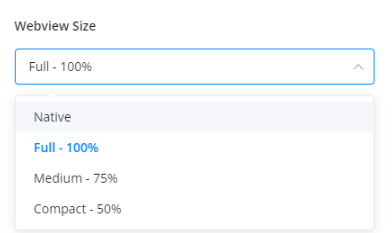
You can choose “Native”, it will open on the new tab. it will works on all the website.
All the options below: Full - 100%; Medium - 75%; Compact - 50%, all these option will open the website in iFrame. Because some of the website don’t support open in iFrame, so you will face the issue.
**Error with Woocommerce Action**
If you are having an issue with Woocommerce action:
- Get customer information
- Create customer
It’s most likely you are seeing the below error message:
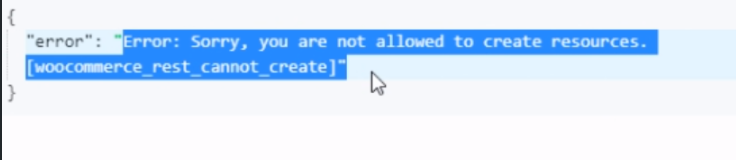
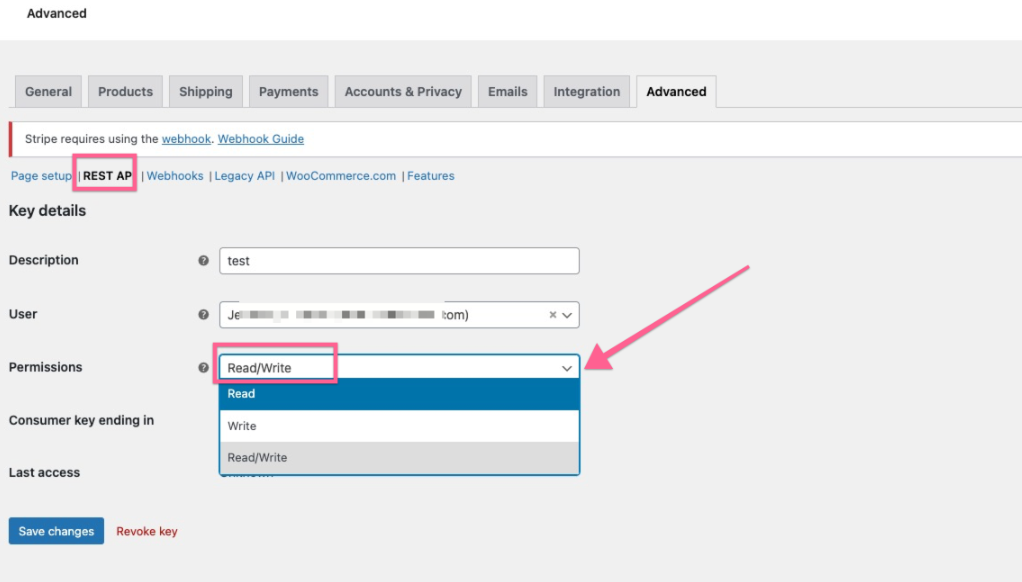
It’s because the permission of your Woocommerce integration, you need to give “Read & Write” right as per the screenshot below:
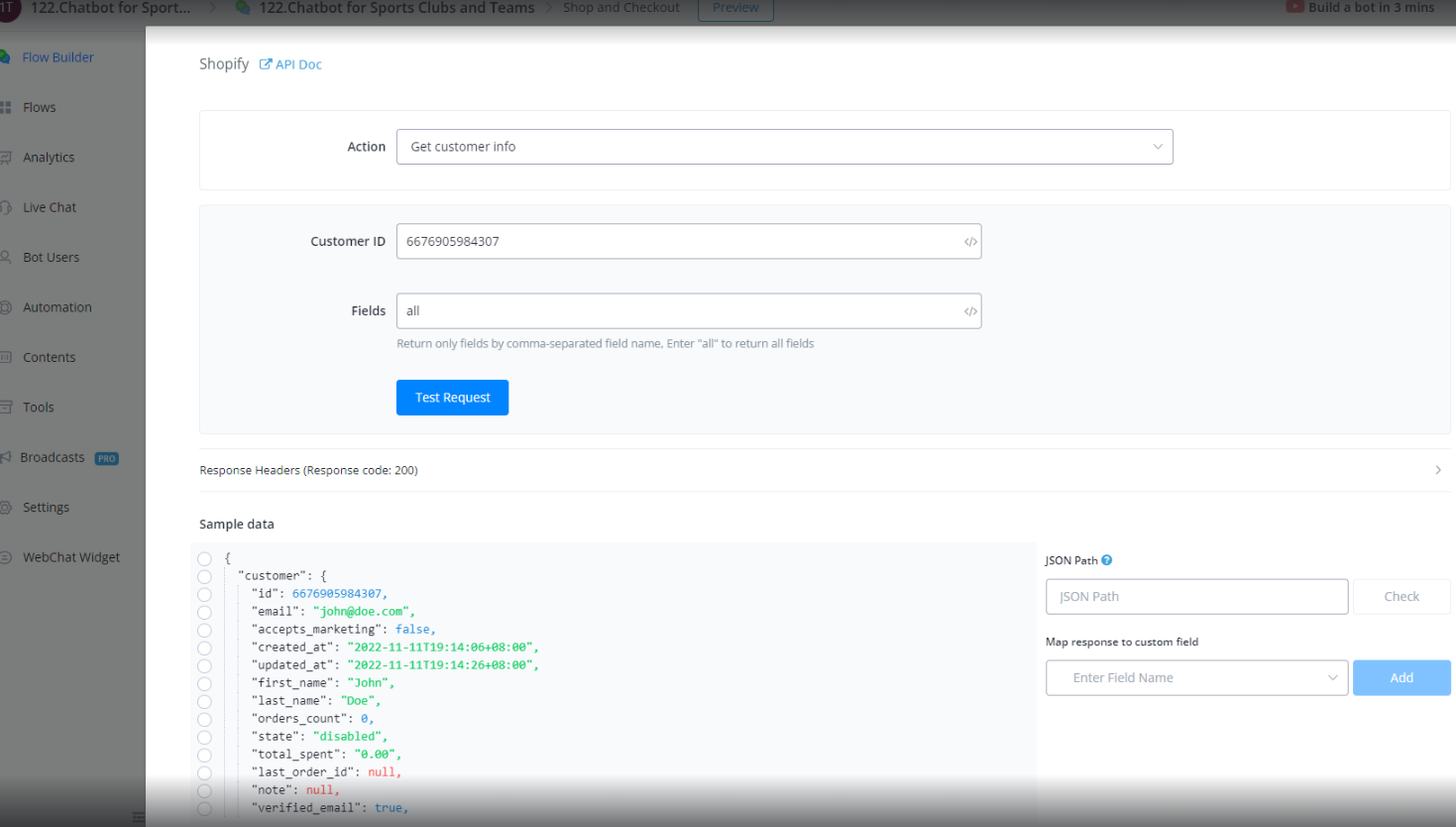
If you still don’t see any results from “Get customer information” action, make sure you select the fields to “All”
**How to format date time?**
There are date time custom field in Messagingme.app , sometime, you want to format them properly.
Here is a few formats you can reference.
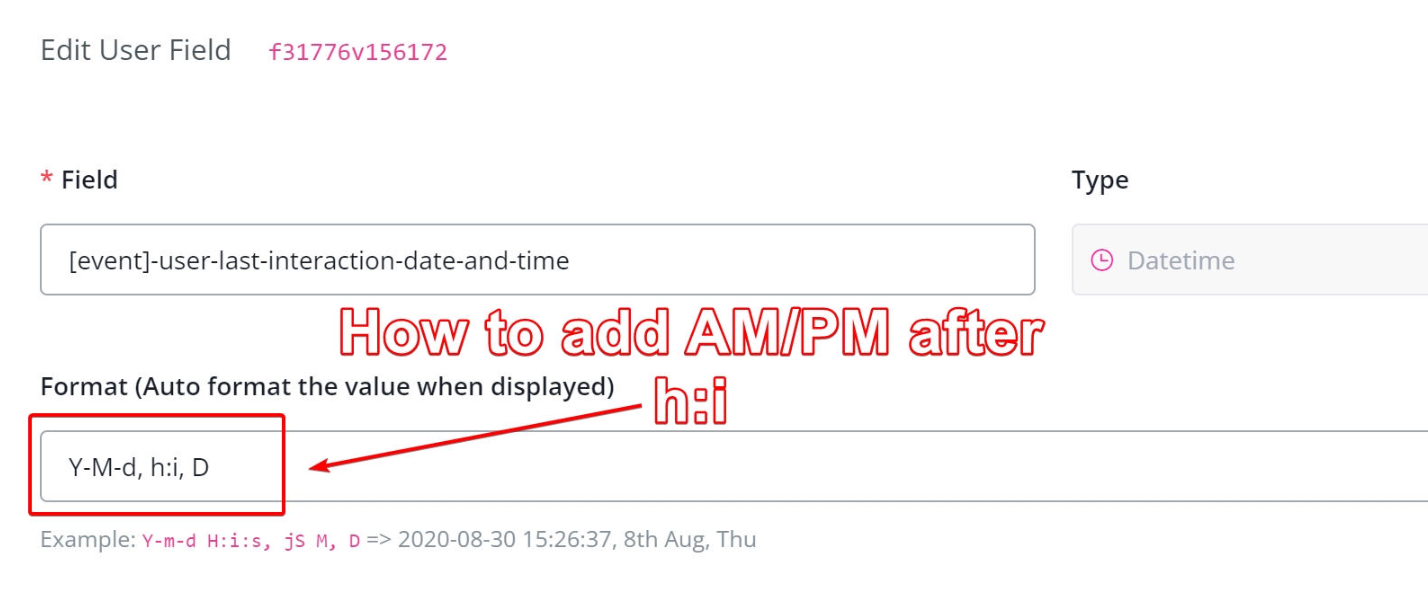
The following characters can be used:d - The day of the month (from 01 to 31)D - A textual representation of a day (three letters)j - The day of the month without leading zeros (1 to 31)l (lowercase 'L') - A full textual representation of a dayN - The ISO-8601 numeric representation of a day (1 for Monday, 7 for Sunday)S - The English ordinal suffix for the day of the month (2 characters st, nd, rd or th. Works well with j)w - A numeric representation of the day (0 for Sunday, 6 for Saturday)z - The day of the year (from 0 through 365)W - The ISO-8601 week number of year (weeks starting on Monday)F - A full textual representation of a month (January through December)m - A numeric representation of a month (from 01 to 12)M - A short textual representation of a month (three letters)n - A numeric representation of a month, without leading zeros (1 to 12)t - The number of days in the given monthL - Whether it's a leap year (1 if it is a leap year, 0 otherwise)o - The ISO-8601 year numberY - A four digit representation of a yeary - A two digit representation of a yeara - Lowercase am or pmA - Uppercase AM or PMB - Swatch Internet time (000 to 999)g - 12-hour format of an hour (1 to 12)G - 24-hour format of an hour (0 to 23)h - 12-hour format of an hour (01 to 12)H - 24-hour format of an hour (00 to 23)i - Minutes with leading zeros (00 to 59)s - Seconds, with leading zeros (00 to 59)u - Microseconds (added in PHP 5.2.2)e - The timezone identifier (Examples: UTC, GMT, Atlantic/Azores)I (capital i) - Whether the date is in daylights savings time (1 if Daylight Savings Time, 0 otherwise)O - Difference to Greenwich time (GMT) in hours (Example: +0100)P - Difference to Greenwich time (GMT) in hours:minutes (added in PHP 5.1.3)T - Timezone abbreviations (Examples: EST, MDT)Z - Timezone offset in seconds. The offset for timezones west of UTC is negative (-43200 to 50400)c - The ISO-8601 date (e.g. 2013-05-05T16:34:42+00:00)r - The RFC 2822 formatted date (e.g. Fri, 12 Apr 2013 12:01:05 +0200)U - The seconds since the Unix Epoch (January 1 1970 00:00:00 GMT)**Webchat widget is not working**
There might be multiple reasons why your webchat widget might not work.
Below are a few reasons why this might be.
Widget is not showing
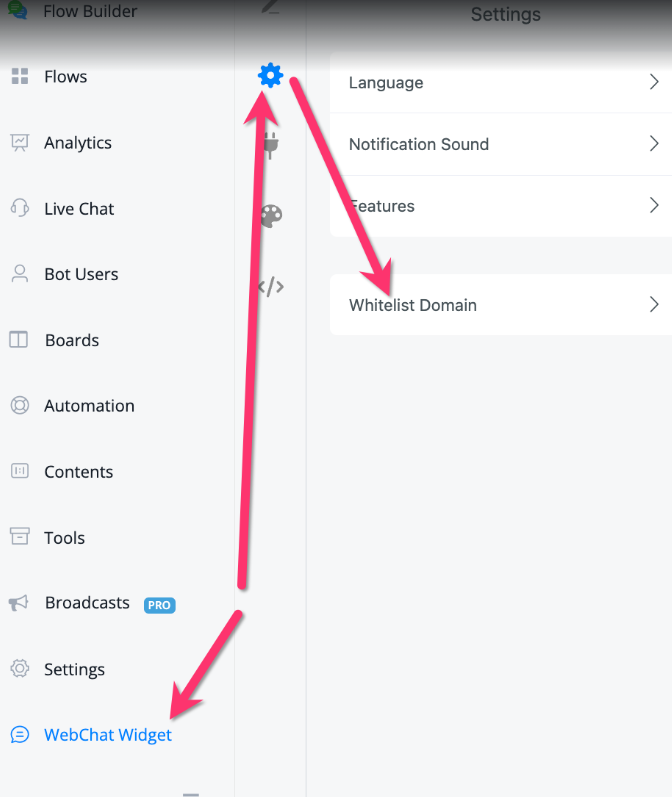
the main reason why this happens is the domain you are using the webchat widget on is not whitelisted.
You can do so by going into the webchat widget settings by pressing the gear icon and then press “Whitelist Domain”
Widget is not triggering the correct flow
if you are using Wordpress please disable all plugins you might have active, including caching plugins. then check if the issue still remains.
In most cases the caching plugin will be the culprit as it will minify the widget installation code and remove the ref parameters if you added them correctly.
If this is the case you might want to look to exclude the webchat widget from being minified to prevent this from happening
**What are the Platform default limits?**
Below you will find the default platform limits. some can be increased according to a connected paid addon.
| Topic | Limit |
|---|---|
| Max execution time | 40 seconds |
| Max Steps error | 30 Steps |
| Max Step Points | 80 points |
| Default timeout for external request | 15 seconds |
| Default timeout for openAI action | 30 seconds |
| Messagingme.app Native Object Storage Limit | 1 Gb |
| Max Total Nodes | 2000 |
| Smart Delays | 100 per user per 24 hours |
| Max inboud webhooks requests | 500 per 24 hours |
| Max OpenAI Embeddings | 500 |
| Messagingme.app API Requests | 1000 per hour |
| Googlesheet filter limit | Up till 5000th entry |
| Googlesheet API limit | 3 requests per second |
| Broadcast error rate limits | No more than 100 errors within 5 mins |
| Chat history across all channels(send from user) | 4 months |
| Chat history across all channels(send from bot) | 3 months |
| Max file upload size limits | 10MB |
| Media file size storage limits | 100MB(free plan); 1GB(paid plan) |
| WhatsApp Media File Expire date | For meta cloud api, it’s 30 days by default; If you have connected S3 storage in the integration, the expire date is the same as the chat history. |
| Total Date/Time triggers | 50 per bot |
For the point counting system:
Below action don’t count points:
Action: Set custom field, clear custom field, clear all custom fields, json operation, add tag, remove tag, Condition, randomiser, Goto
Below action count as 5 points:
Send Message;typing/waiting,
Action: external request action, mini app action, trigger workflow/schedule workflow, google sheets action, data store action, fire trigger, notifications (voice, sms, whatsapp, slack, telegram, live chat notification, email notification), update user profile
Integration actions(currently 1 points, will increase to 5 points from 1st Aug 2025):
Shopify action; Woocommerce action; Calendly action; Cal.com action; Cloudinary action; S3 storage actioin; Stripe action; Facebook api action; WhatsApp action; Google API action; Google Map action; Mapbox action; Eleven lab action; Ecommerce API action; Store location API action; SSO API action; SMS Blacklist API action; Bot user API action; Ticket API action; Rate limit action; GoHighLevel API action; GoHighLevel API v1 action; OpenAI action; Gemini Action; Coze Action; X.AI action; Deepseek Action; AI_Task action; Dialogflow Action, etc
Below action count as 10 points:
Add team notes; Smart Delay; Javascript Function
All the other actions, node, will consider 1 point.
If the user reached 80 points without any user interaction(question node), the bot will stop.
Max 30 Steps Error:
So we count nodes, you can have multiple actions in one node, but during 30 nodes, you should have at least 1 question node, otherwise the bot will stop.
Max 40 seconds time out Error:
If the flow have been running for the continuous 40 seconds, and don’t have user interaction(question block), then this error will trigger.
This is usually happen if the customer is using a lot of external request or openAI action, sometime if the destination server is slow, it will timeout 40 seconds. The bot automation will stop.
By default, our external request time out is 15 seconds. Our native openAI action timeout is 30 seconds.
Add-on option:
We have the add-on option to increase the limits, it will cost $60 per month for 1 bot. Please note it’s at the bot level, not at workspace level.
For every $60 per month, we can increase the limits below:
- Max points increase by 10 points.
- Max steps increase by 10 steps
- Max timeout limits increased by 10 seconds
- External request timeout increase by 10 seconds
- OpenAI action timeout increase by 10 seconds
**Error: “Sequence failed, Bot user unsubscribed”**
This error is triggered whenever the bot tries to sent a sequence to a bot user who has been unsubscribed from the bot.
The user needs to be resubscribed in order to receive the sequences.
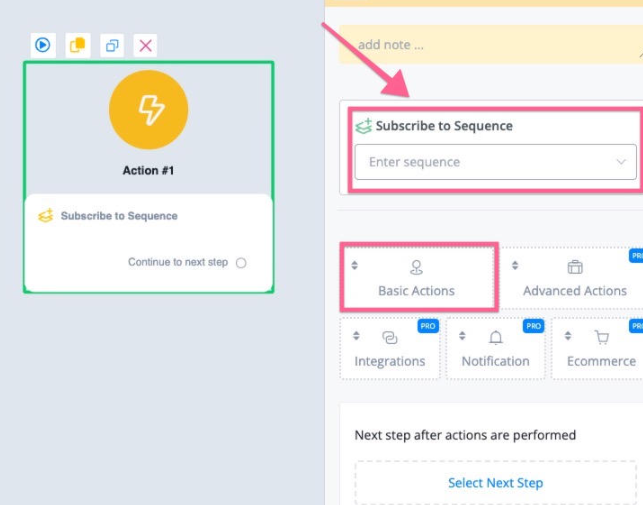
Once the bot user is resubscribed you can use the action in the basic action, subscribe to sequence to re-subscribe the user as per screenshot below:
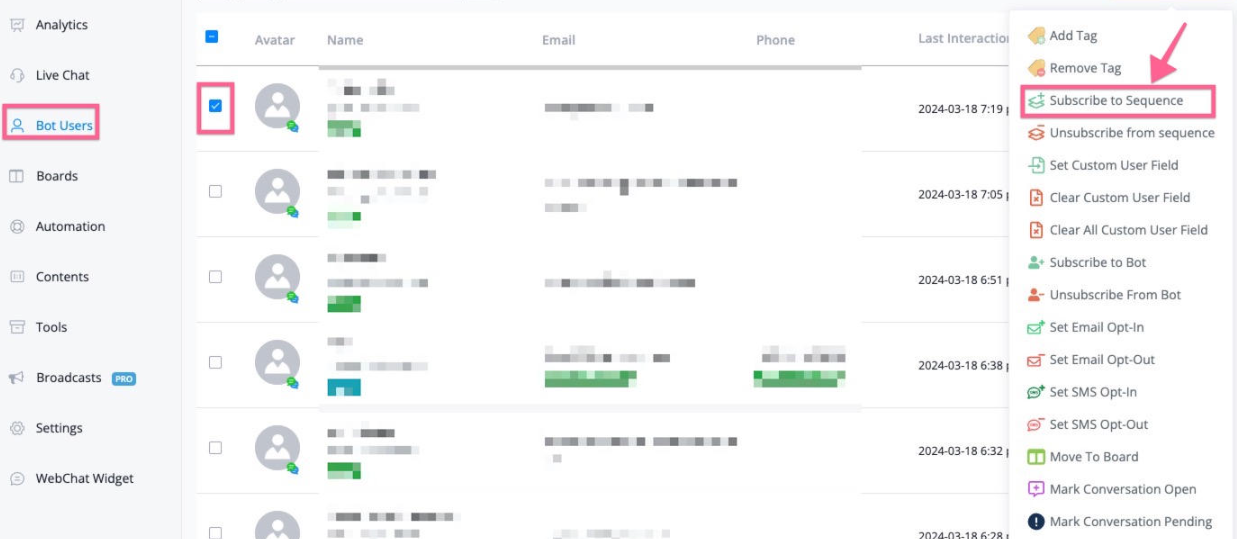
Or go to “bot users”, and select the contacts, and then in the “bulk action” dropdown, select “subscribe to sequence”
**Error: “Data size is over 20000 characters”**
For the user custom field, the max storage limit is 20000 characters. To solve the issue, reduce the character you are trying to save.
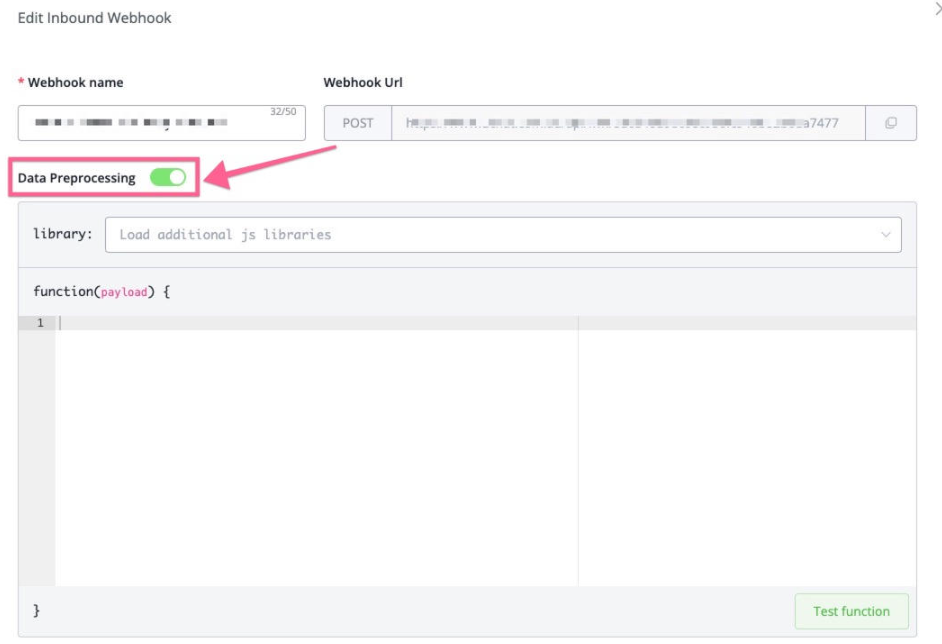
If you are saving the value from inbound webhooks or our internal integration actions, use data pre-processing to narrow down the value you want to save.
You can find the data preprocessing in the inbound webhook setting below:
You can also find the data preprocessing in the external request as per screenshot below:
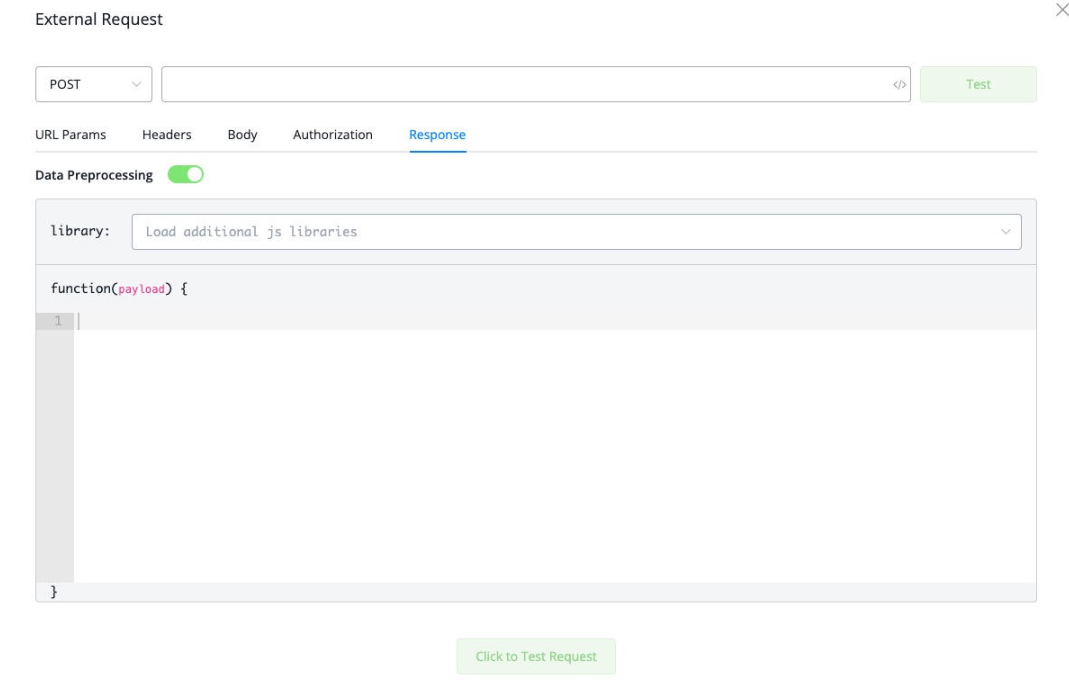
Please note, you might need developer skills to use the above data-preprocessing feature.
**Error: “Operation timed out after 30001 milliseconds with 0 bytes received”**
This error is usually triggered by an OpenAI integration action. The default timeout for openAI natively is 30 seconds after which Messagingme.app servers timeout. If a server timeout before receiving a reply back from OpenAI, this error is logged.
To reduce the chances of this error occurring, reduce the Chat history or optimize the prompts and system messages so that the request takes less time to execute. You can also break a larger chat history into smaller chunks and using an intent detection system as a workaround. Messagingme.app also offers add-on to increase the timeout limits, the cost is $60 per month to increase 10 seconds more.
**Error: “Data Store Error: Connection is not verified”**
This error usually occurs when you try to integrate your database to Messagingme.app . The connection establishes however Messagingme.app is unable to verify the connection. In most cases the reason for this is incorrect credentials. There are cases where the IP isnt whitelisted and hence the connection fails to establish.
Input the correct credentials and the connection will be verified
**Error: “Notification Content must not be empty”**
This error is triggered whenever you are trying to send a notification and the body/content of the notification is empty.
To resolve this, make sure that the body of the notification is not blank. If the body consists out of a custom field then check the bot user to see if that custom field populated properly.
**Error: “Broadcast failed, Bot user unsubscribed”**
This error is because the user has unsubscribed from your bot when sending the broadcast.
If you don’t want to see the error, you can add conditions in your broadcast flow, only send the broadcast to the user who subscribed to your bot.
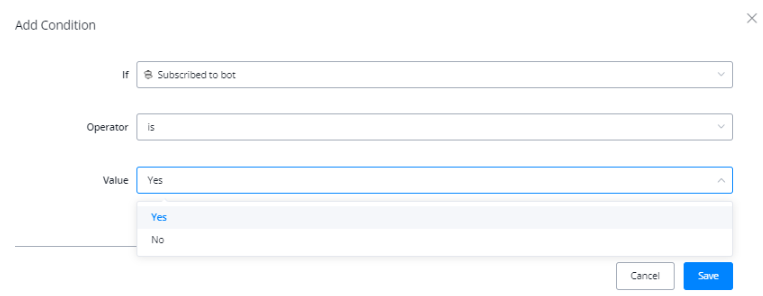
And you can also choose to delete the unsubscribed user to keep only your engaged users in your chatbot.
You can create the triggers in the automation: User Unsubscribed from Bot, and trigger a flow with “delete user” action inside.
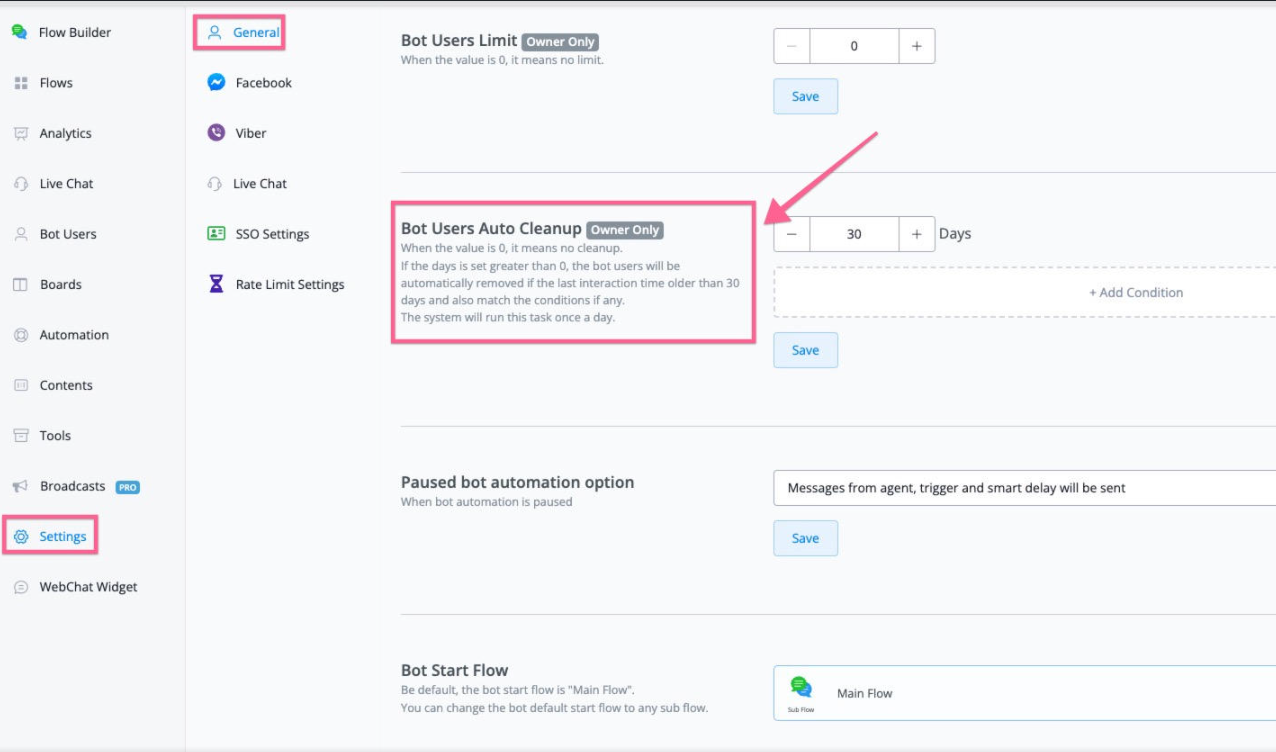
Our platform also has an auto clean up feature, you can find the settings in “Settings” -> General -> Bot Users Auto Cleanup(only the owner can see this setting).
**Error: “Open AI not connected”**
This error is triggered when you try to use an OpenAI action but the workspace is not integrated with OpenAI yet.
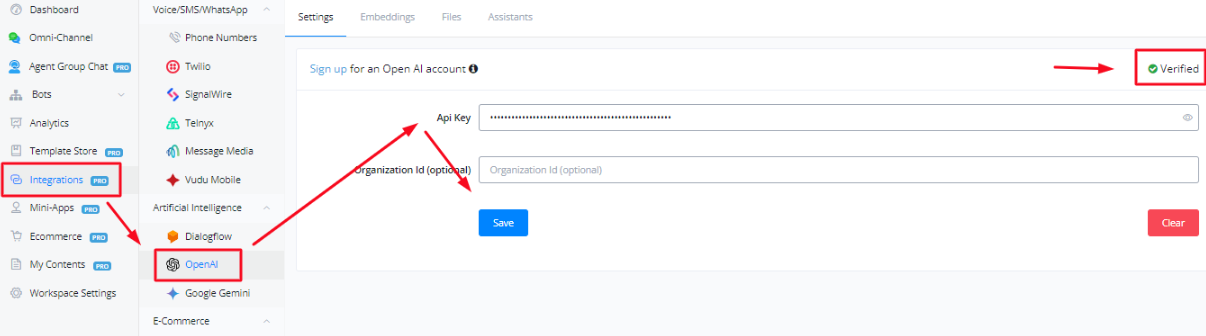
To integrate OpenAI, Click on “Integration” from the dashboard of your workspace, search for OpenAI under the Artificial Intelligence tab and enter your OpenAI API Key.
Click on Save and make sure the connection says “Verified”
Note: Organization ID is optional, you can leave it empty.
**Error: “SpreadSheet is not selected”**
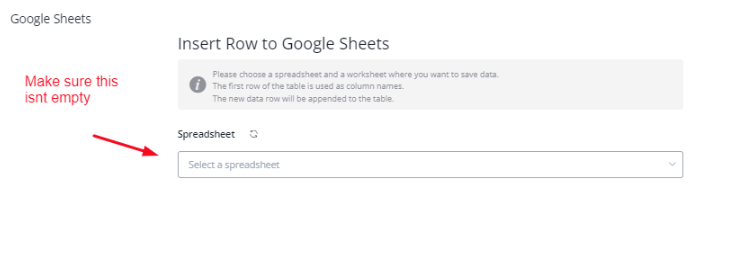
This error is triggered when you trying to use a google-sheet action and the spreadsheet isnt selected.
There can be several other reasons as well. This could happen if you installed a template and the google sheet was not copied to your own account.
This can happen if your workspace does not have google sheets integrated yet and thus the installation of the template was not able to install a copy of the used google sheet to your account
Make sure you connect your Google account in Integration -> Data/File Storage, and also select the correct spreadsheet in the Google sheet action.
**Error: “Pro feature only”**
This error is triggered when you try to use an action which is only available to users on Pro plan. In order to use these actions, you will have to upgrade your workspace from free plan to business or partner plan.
**Error: “Request timeout”**
This error is triggered when you are using External Request action and the external API call doesn’t return an answer within 15 seconds.
The Messagingme.app servers time out after 15 seconds. The solution is to make sure the API call is completed within 15 seconds. If you can’t optimize the timeout, you can choose to purchase the time-out add on. You can increase the timeout limits by 10 seconds for $60 each.
**Error: “Message not sent because not subscribed”**
This error is triggered whenever the bot tries to send a message to a bot user who is no longer subscribed to the bot.
You can use “opt-in” action in the flow builder, actions → basic actions. You can also resubscribe the bot users using “Subscribe to bot” action → basic actions.
**Error: “Over 100 sequences subscribed in last 24 hours”**
The platform has the rate limits of max 100 sequence subscription. If you have subscribed to the sequence more than 100 times, you will receive this error.
You will need to optimize your “subscribe to sequence” action in your flow.
This usually happens when the user is testing flows, or having an endless loop somewhere in your flow design. Normally the limit is enough for the chatbot automations.You need to check your flow logic to fix the issue.
**Error: “Google Sheet is not connected”**
This error is triggered when you are trying to use a google sheets action and it’s not integrated with your workspace.
To integrate Google Sheets, follow the video below:
https://youtu.be/WcjcU4MNAfA?si=2fztYimauhxy6l6U
Please make sure you give all the permission asked when you are connecting your Google sheet account.
**Error: “Bot users in workspace is over limit”**
This error means that you have reached your plan limits for both users. Hence the automations will not continue further.
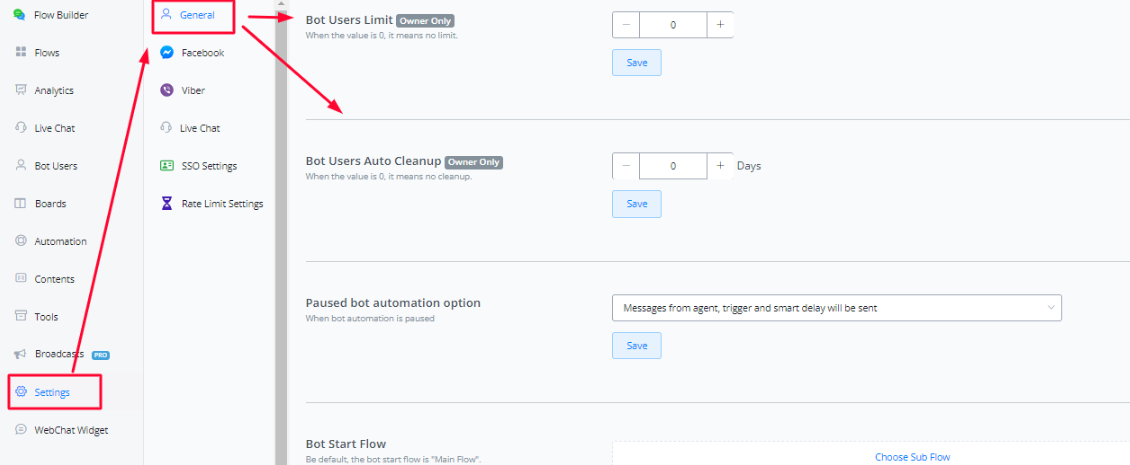
You will need to delete bot users manually or set up automation deleting rules in the Channel, then go to settings, then “General”, and then set up “bot user limits” & “Bot users auto cleanup”.
Please note the bot user limits & cleanup settings are only available to the owner of the workspace.
**Error: “The rate limit has exceeded, Please retry again after some time”**
This error is usually triggered when a broadcast is being sent or you are having huge conversation live traffic and it hits 100 errors per 5 minutes for your bot.
The broadcast will be paused temporarily.
Messagingme.app will keep counting the error messages every 5 minutes. If you have fewer errors than our limits, your broadcast or your bot will resume.
To resolve this error is to make sure you optimize your flow to handle the errors.
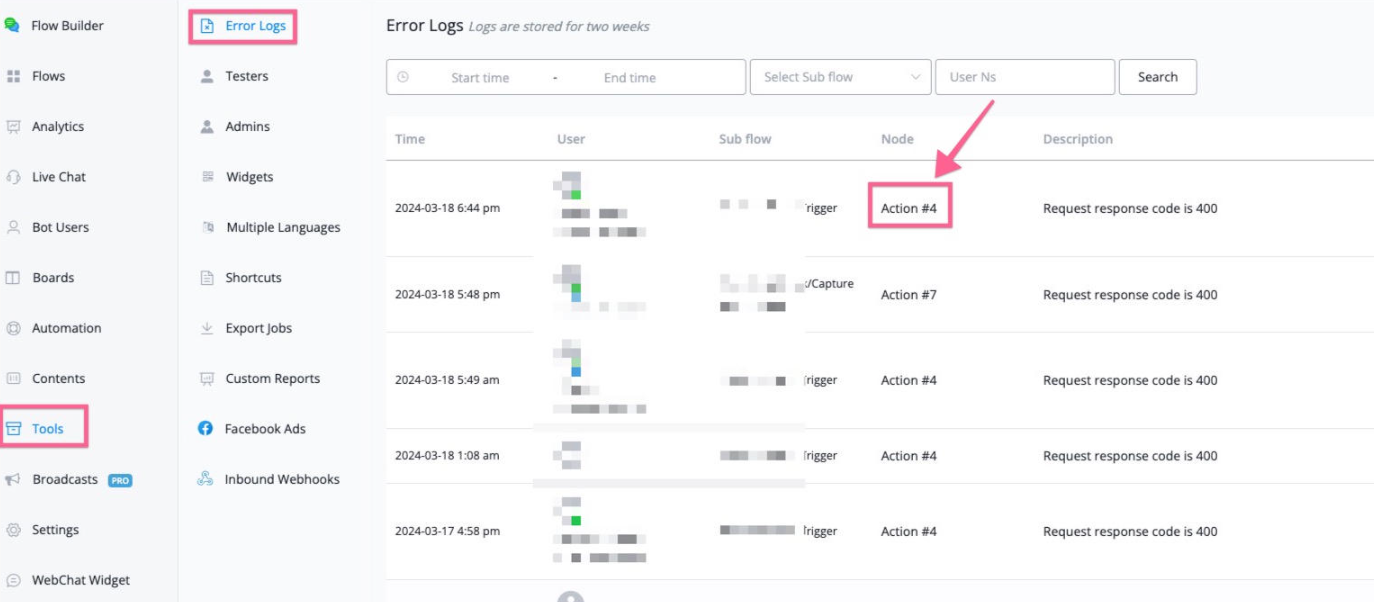
You can open your bot, and got to “Tools” -> Error logs, and then if you click “Node” in your error logs, it will redirect you to the flows, you can check and optimize your flow.
Note: If you are using rate limits feature, this error will also be logged if you exceed those limits.
**Error: “Over max execution time limit of 40 seconds”**
This error is triggered whenever there isn’t a user interaction for 40 seconds.
By default, Messagingme.app offers a max execution time of 40 seconds. So if you have a question node(which considers user interaction) triggered. and starting from this point, Messagingme.app will move forward with your flow logic for max 40 seconds. You will need to have another user interaction(question block) within 40 seconds, otherwise you will see this error.
A few of the user interaction actions examples:
- Question node - asking questions
- Click buttons or quick replies
- The user reply back to your bot
Please note, if you are using external request action or openAI action, the response time from the 3rd party is also considered in the timeout limits.
The solution is to add more user interaction in your chatbot flow. Every user interaction will reset the max execution time.
Also, you can choose to purchase the max execution timeout add-on. You can increase the timeout limit by 10 seconds for 60$/month each.
**Error: “Over 30 steps without interaction step”**
In Messagingme.app flow designs, every node is considered one step.
It doesn’t matter how many actions you are using in that node, but between one user interaction to the next user interaction, you can’t have more than 30 steps. This will include the background or parallel flows that are triggered.
A few of the user interaction actions examples:
- Question node - asking questions
- Click buttons or quick replies
- The user reply back to your bot
To resolve this error, try to optimize your flow logic(like break up bigger automations into small flows) and avoid endless loops.
**Error: “Card title is empty”**
If you are using “card element” in the send message block. you will need to make sure the card title has value.
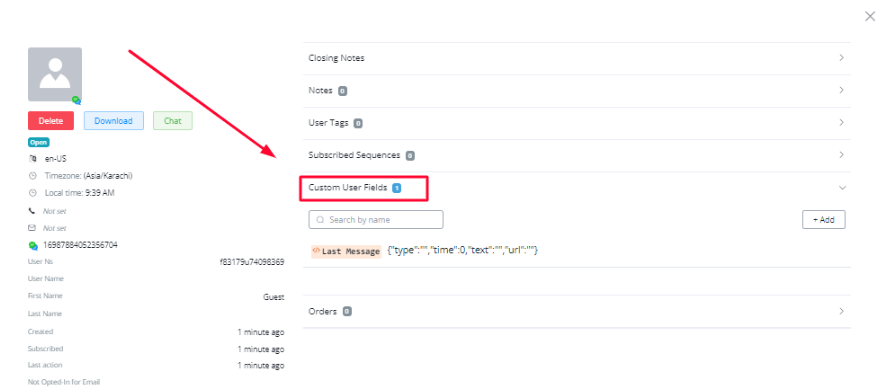
If you are using a user custom field - variable in the card title, you will need to make sure the variable has the value. you can check this by looking at the bot user overview and select the bot user which has the error triggered for. Ensure that the custom field used for the card title has any value. If not then it means your steps before this node have an issue you need to troubleshoot somewhere
Otherwise, you will see the error. If you are using a user custom field in the card title, you can use the condition check before sending the card, and notify the admin if there is any issue like this.
**Error: “Over 100 smart delay used in last 24 hour”**
Max 100 smart delay action can be triggered to every bot user. Inspect and modify the node causing the issue to prevent an endless loop that triggers smart delay actions, ensuring adherence to the 100-action limit per bot user within 24 hours.
Possible causes:
The error occurs when the bot user has received the maximum allowed 100 smart delay actions within 24 hours, potentially due to an endless loop triggered within your flow.
Possible solutions:
To address this issue, inspect the specific node in your flow that’s causing the error and ensure that you haven’t set up an endless loop automation.
Modify the automation logic to prevent the continuous triggering of smart delay actions and ensure that the limit of 100 actions is not surpassed. This involves adjusting the flow to avoid repetitive or infinite loops that might lead to exceeding the smart delay action limit.
These errors are mostly seen in channels like WhatsApp where the typing feature is not present. We updated our typing block to automatically convert to a waiting delay if the channel in question does not support typing. This way you do not have to use the smart delay anymore and could solve the issue of your problem.
**Error: “Upload failed. You have reached the limit of storage size(1GB). Connect to your S3 storage to continue upload”**
We allow 1GB free storage for the upload files, if you need extra storage files, you can create a free cloudinary or S3 account, to store them. You can also manage your content media library by going into your workspace’s dashboard and clicking on the My Contents tab.
**Error: “PostgreSQL Integration - Table isn’t synced”**
First of all, Only support the tables with auto-increment primary key id
Also, Once the table is synced to Messagingme.app , we don’t delete the synced table even if it’s deleted in your Postgresql database.
Because you might still use them in your chatbot datastore action. You can manually delete the table from the Messagingme.app side.
Please note, once the table is deleted from the Messagingme.app side, even if you sync the same table back to Messagingme.app , the datastore ID might still change.
**Error: “This team has too many team members for the selected plan”**
The error “This team has too many team members for the selected plan” occurs when attempting to upgrade the plan, indicating an excess of bots or members in the current plan.
The solution involves removing surplus bots or members to fit within the limits of the current plan before upgrading.
Possible Reason for Error:
The error likely arises due to the current plan’s limitation on the number of team members or bots, exceeding the permissible count for the desired upgrade. To resolve this, removing additional members or bots is necessary to fit within the constraints of the selected plan.
Possible Solution:
To resolve the issue, before upgrading the plan, ensure the number of team members or bots adheres to the limits set by the desired plan.
This involves removing excess members via the workspace settings and deleting surplus bots by navigating to “All bots,” selecting the specific bot to delete, and choosing the delete option from the dropdown menu.
Once the excess members or bots are removed, proceed with the plan upgrade, and subsequently re-add the necessary members or bots accordingly.
Or you can upgrade to a higher plan which has more limits than your existing plan.
**Error: “Inbound webhook request limits”**
By default, the inbound webhook limit is 500 requests within 24 hours, if more requests are sent to the inbound webhook URL. it will be ignored.
If you want to check the inbound webhook limits, simply use an external request to trigger the inbound webhook URL, and check the response header, you will find the limits, and how many requests are left.
Check below videos for more details:
Increase the inbound webhook limits
If the user need extra inbound webhook, they can purchase based on below information:
500/day - Included -› 15K requests/per month
1000/day - $60 per month -› 30K requests/per month
2000/day - $100 per month -› 60K requests/per month
3000/day - $140 per month -› 90K requests/per month
4000/day - $180 per month -› 120K requests/per month
5000/day - $220 per month -› 150K requests/per month
10000/day - $350 per month -› 300K requests/per month
**Error: “Import contact show strange character - For example Hebrew language”**
You might face this issue if you are importing contact into the bot user section, and the value is all special characters. This usually happens with RTL languages, like Hebrew, Arabic. It’s because of the encoding system isn’t supported well with RTL languages.
You will need to convert the import files into UTF-8 encodings first.
The solution will be:
(1) Open an Excel file where you have the info (.xls, .xlsx )
(2) In Excel, choose “CSV (Comma Delimited) (*.csv) as the file type and save as that type.
(3) In NOTEPAD, open the saved .csv file in Notepad
(4) Then choose -> Save As..and at the bottom of the “save as” box, there is a select box labeled as “Encoding”. Select UTF-8 (do NOT use ANSI or you lose all accents etc). After selecting UTF-8,
Choose select any type under “Save as type” then save the file to a slightly different file name from the original.
Important note, the title can’t be saved in Hebrew as it will throw an error when importing. So save the title in English format.
**Error: “Comment reply error. We've limited the number of times you can post, comment, or do anything else to prevent spam. You can try again later”**
This issue is caused if you have high traffic on your Facebook page post comment wise and the chatbot is actively responding to each comment. In order to prevent your page from being flagged by Meta there is a rate limit implemented to prevent that.
In order to resolve this issue you can do either of the following two options”
OPTION 1:
- if you reply directly with static replies from the comment keyword trigger you can use our built-in solution to delay the chatbot replies with random intervals.
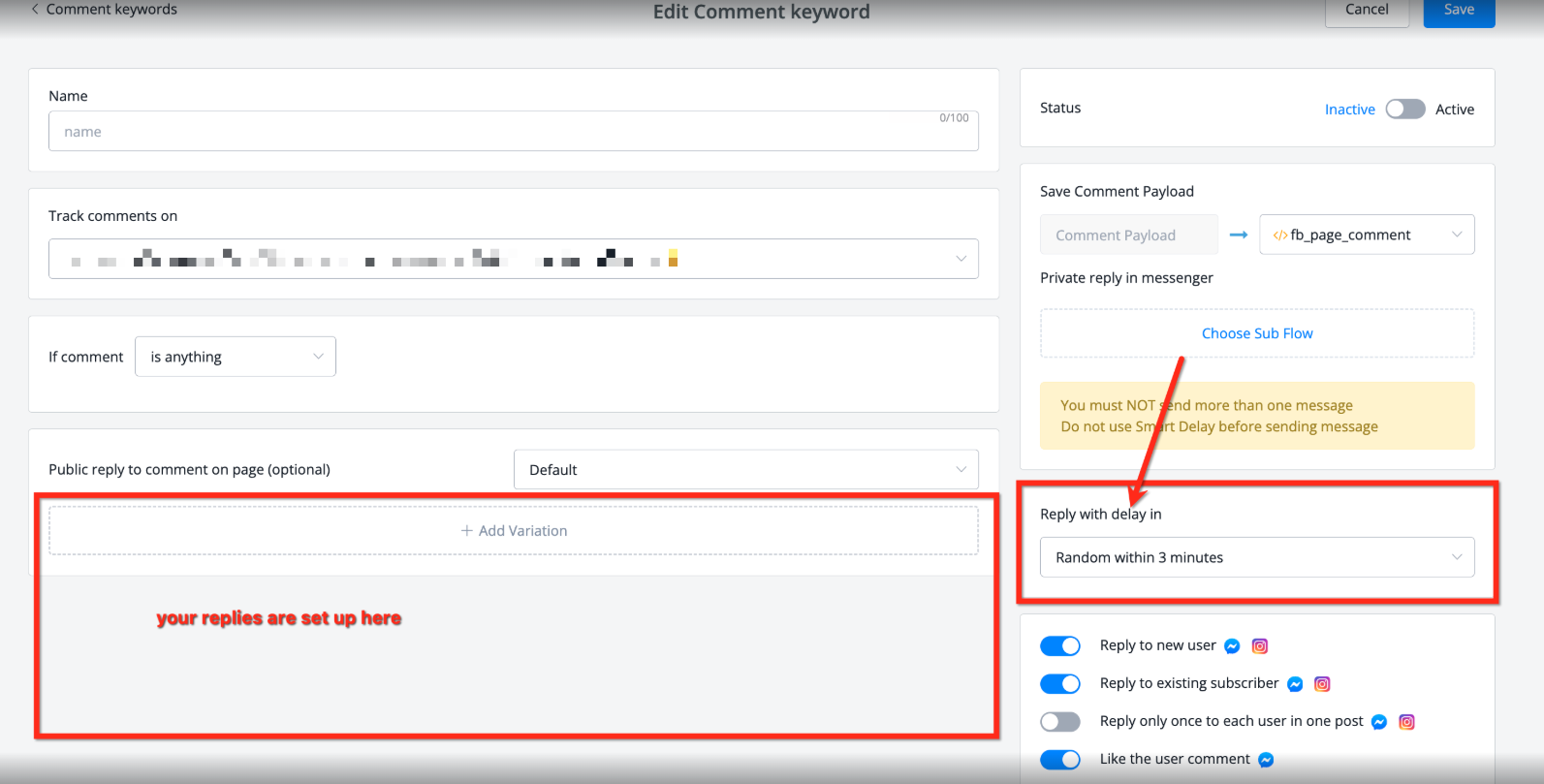
On the right you will have the option to set a random delay. We advise the higher the traffic the higher the random reply interval. You have options from several minutes up an hour
OPTION 2:
- If you use a flow to reply to the user’s comment then consider setting up a split node with several sequences connected.
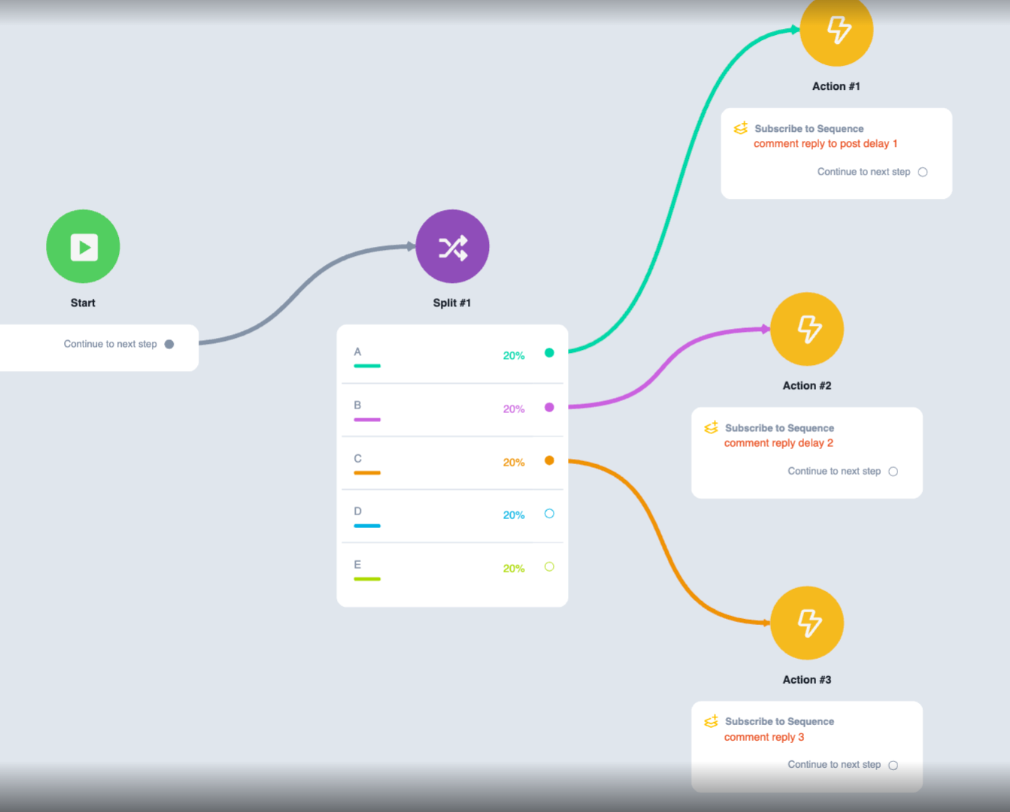
This is how a flow could look like
You start the flow with a split node then connect each variant to its own action node with a different add to sequence
Each sequence will basically point to the exact same flow where you have the comment reply action set up but on the sequence itself you can determine how long to wait before the flow is triggered
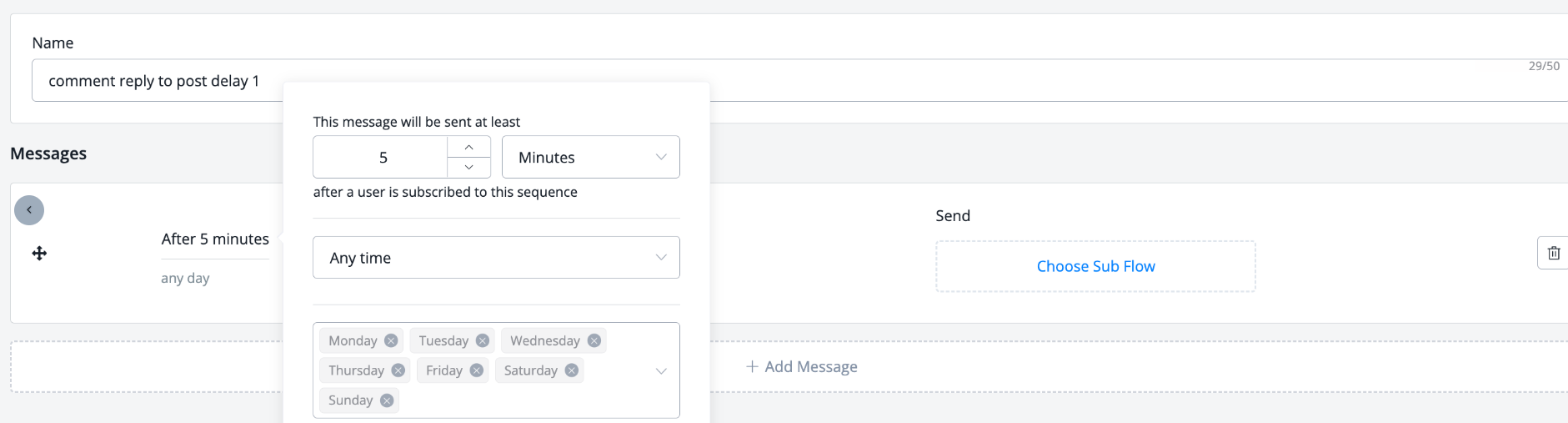
This way you have more flexibility and prevent posting instantly