Introduction & getting started
Features about Messagingme.app
Multiple channels support
MessagingMe.app supports you or any business to build a chatbot across all 12 channels, including Facebook Messenger, Instagram, WhatsApp, WhatsApp Cloud API, Google Business Messenger, Telegram, Line, Viber, SMS, Voice, VK, and Slack, Intercom, Jivo Chat.
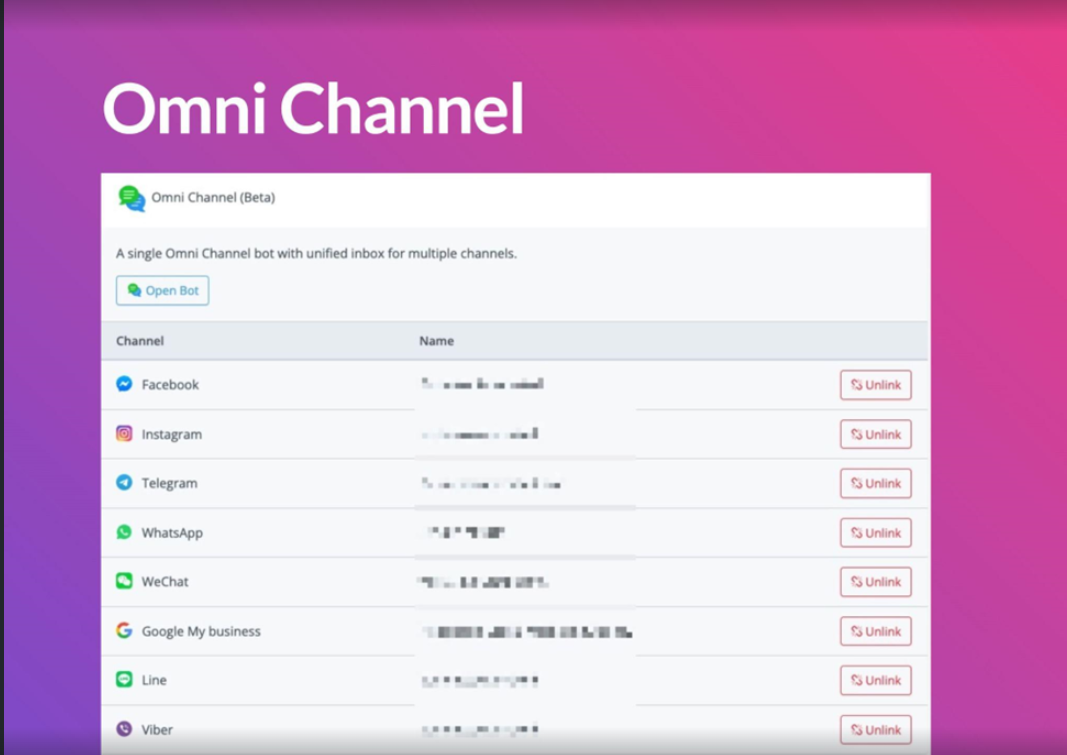
Omni channel
Messagingme.app introduced omnichannel, where you can build a single omnichannel bot with a unified inbox for multiple channels.
Build it once and launch on all 8 channels(currently, more channels will be added), including Facebook Messenger, Instagram, Telegram, WhatsApp, WeChat, Google Business Messenger, Line, and Viber.
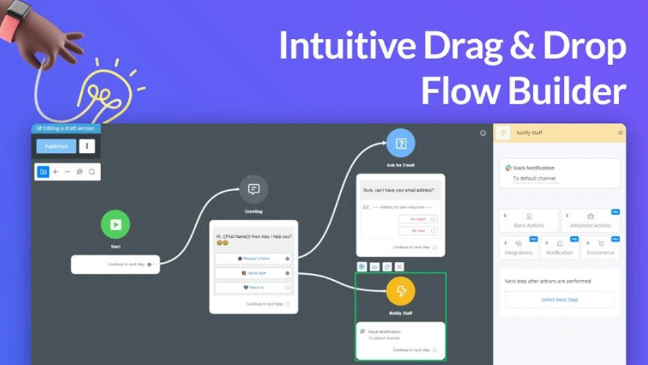
Intuitive Drag & Drop flow builder
You can design any kind of chatbot in just a few minutes using Messagingme.app’s drag-and-drop visual flow builder.
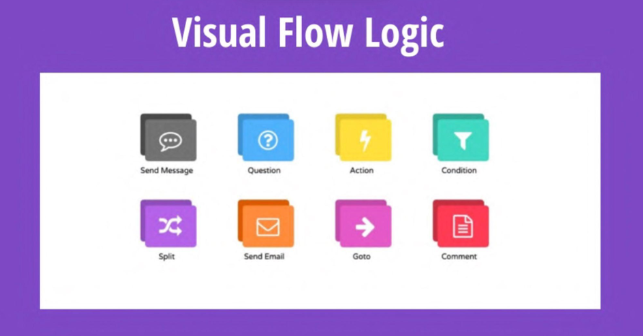
You can use the building blocks to design your automation logic.
Build WhatsApp Chatbot
With the official WhatsApp business API, you can easily sign up with meta Cloud API, and get free 1000 session message* for free every month.
All the new features for WhatsApp are supported right away, like lists, buttons, template messages & product catalog messages & WhatsApp flow, etc
Build A.I. Chatbot
Messagingme.app have multiple A.I integration, including:
- Dialogflow
- OpenAI - Support embeddings & openAI assistant
- Google Gemini
- Claude AI
- Coze
- DeepSeek
- xAI
Not only is MessagingmMe.app easy to use for non-tech users but it’s also a powerful platform for developers to build apps within the Messagingme.app system. With an in-built database, HTTP request, JavaScript function and JSON variable & action you can easily build complicated chatbots without any coding skills!
Built-in Ecommerce support, Set up once and sell across all 12 social channels
Messagingme.app e-commerce feature allows customers to place orders across all the channels we supported.
Your customer can easily search for your products, and Messagingme.app streamlines the checkout process for you.
You can set up coupon codes, set up delivery areas, send order confirmation & abandon checkout follow up easily.
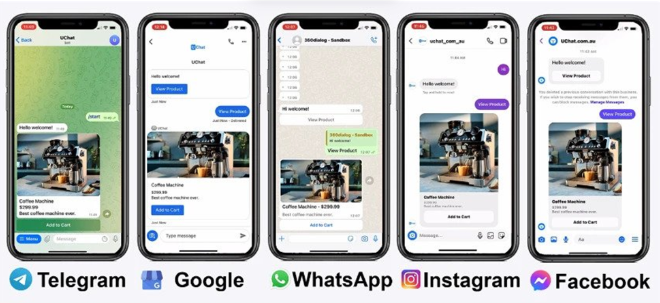
Centralize Inbox & Live chat
Even if you have a smart chatbot, you will need human support from time to time. Messagingme.app allows you to send notifications(SMS, phone call, slack, email) to human agents, and also a live chat/inbox keeps all your contact and conversations on the same page.
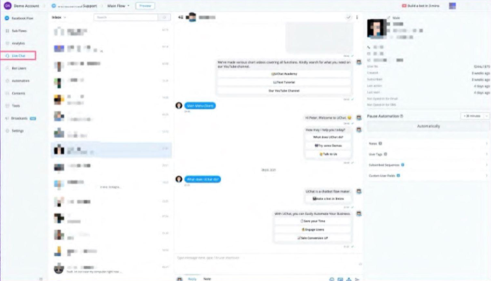
Mobile apps support you to connect with your customer anytime & anywhere
MessagingMe.app offers a mobile app that you can install and talk to your customers across all the social channels we support.
With our mobile app, you can assign the conversation to your team member, pause automation and live chat with the customers from all the social channels.
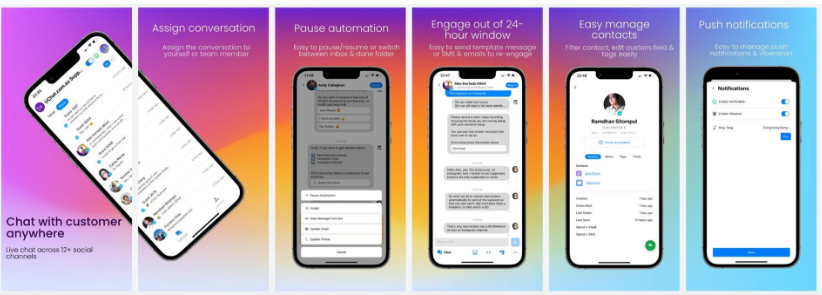
With MessagingMe.app mobile app, you can:
- Assign the conversation to yourself or team members, build your ticketing system. Seamless integrates right in the flow builder with the “assign team member” action.
- Easy to pause/resume automation, easy to switch between inbox & done folder, so that you can always keep track of the tickets
- Re-engaged with your customer: you can send template messages or SMS & email to reach customers that are out of the 24 hour window.
- Easy manage contacts: You can get all the contacts from different social channels at one place, you can filter the contacts based on tags, custom fields or channels, and even edit tags or user custom fields.
- Push notifications: You can easily turn on or off the push notifications, and also select the ringtone you like, always get in touch with your contacts.
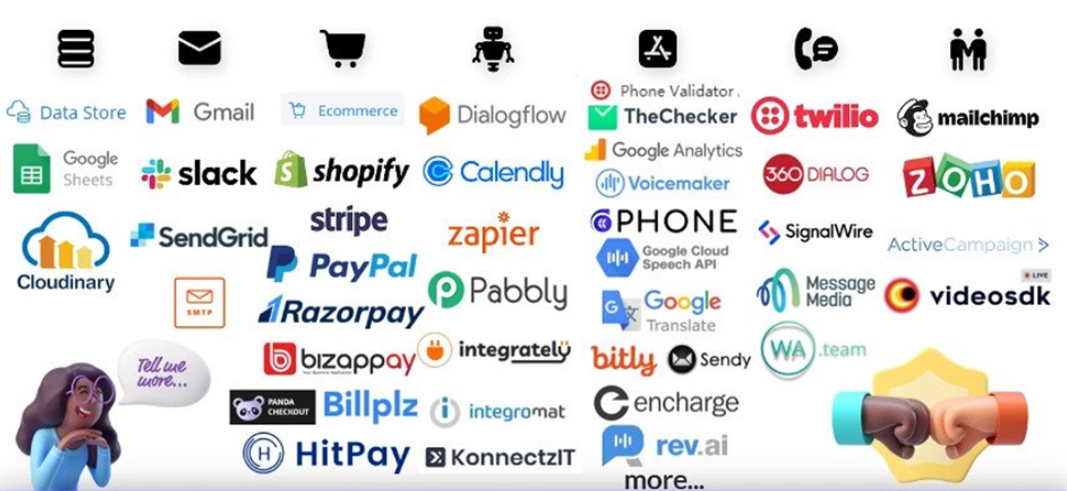
Integrate with everything
Despite all the integration we already have(Stripe, Calendly, Google sheet, Dialogflow, SMTP, Sendgrid, Gmail, Mailchimp), you can still easily connect to other 3rd parties through our Zapier, Integromat, Pabbly Connect, and even build your own integration with our “mini-apps”.
Workspace & members
Workspace limitation
Generally, a workspace is designed for one business and it organizes all the resources for the business, such as payment accounts, email sender profiles, products information, etc.
Each workspace has it’s own billing and limitation on members, bot users and bots amount (fees applied for flexible add-ons).
1 workspace can connect to:
- only 1 omni bot (8 channels)
- only 1 Facebook account
- only 1 Google account for Google My Business
- only 1 Google account for Google Sheet
- only 1 Google account for Gmail
- only 1 Google account for Dialogflow
- only 1 Intercom account
- only 1 Stripe account
- only 1 PayPal account
- only 1 Cloudinary account
- only 1 Calendly account
- only 1 MongoDB Cloud account
- only 1 Twilio account
- only 1 SignalWire account
- only 1 Message Media account
- only 1 SendGrid account
- only 1 MailChimp account
- up to 10 SMTP profiles (SMTP email sender)
Moreover, 1 workspace can download each mini-app only once. For example, you download a WooCommerce mini-app and connect your workspace to a WooCommerce account, you are unable to download it again for connecting another WooCommerce account. Unless the app developer design it to be connecting more than 1 account.
You can connect to any Facebook Page / Google My Business and create bots for them as long as you are the owner / admin of those pages / businesses.
When you connect to your Facebook account, make sure you select all the pages that require management and there you go. For example, you wanted to build bots for your clients, simply have your clients invite your Facebook account to be an admin of their Facebook pages.
Same for Google My Business, have your clients invite your Google account to be an admin of their businesses and then you can build Google bots for them.
Workspace settings
Worspace profile (timezone)
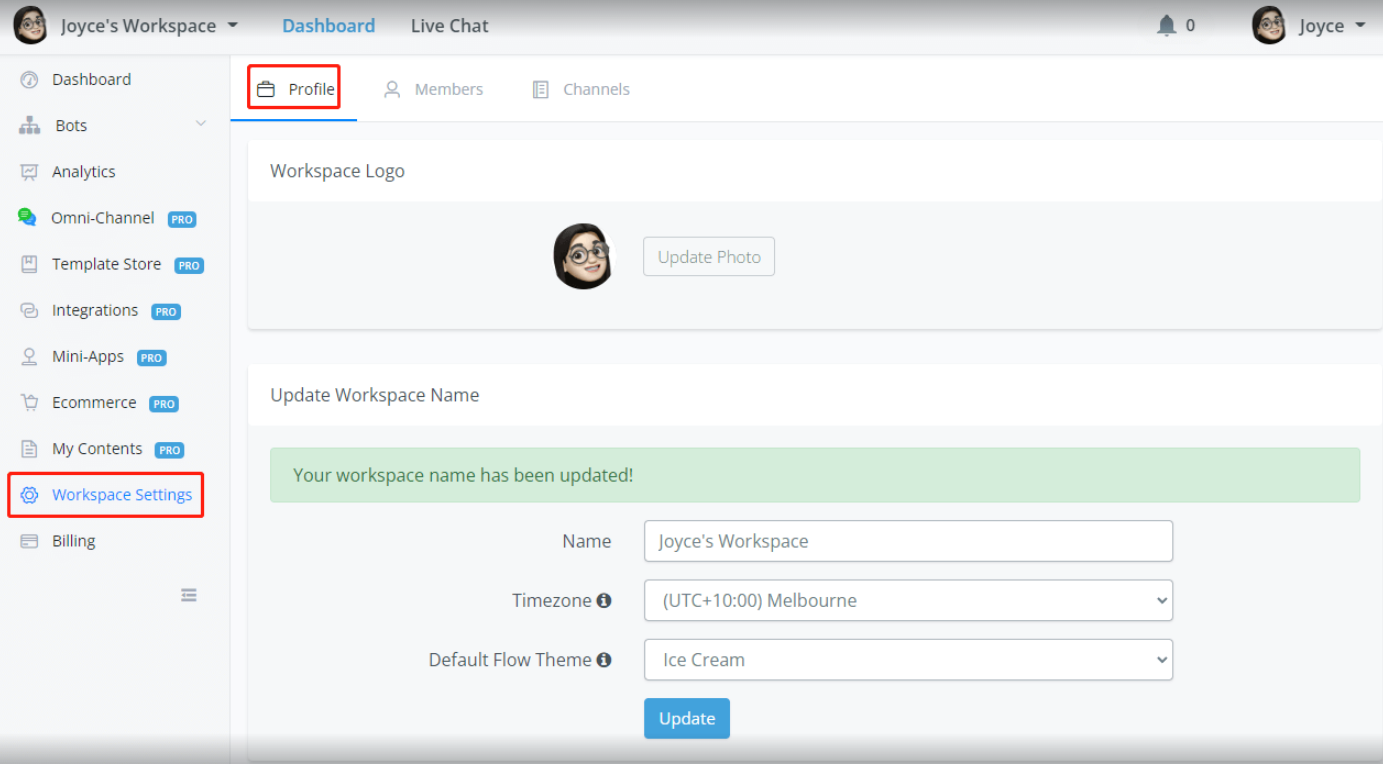
To edit the profile of your workspace, click Workspace Settings and profile in the above screenshot. You can change your logo, workspace name, timezone and default flow theme.
💡 TIP - The timezone setting of a workspace will affect how your bot process time value. For example, the system value “BOT_CURRENT_TIME” is different when you have different timezone settings. Moreover, system value “NOW” and “TODAY” is based on bot users’ timezones, if they don’t have a timezone in profile, workspace timezone is used.
Workspace management
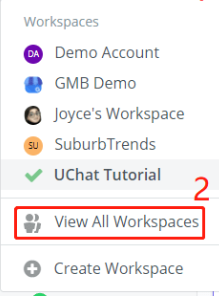
On the upper left corner of your dashboard, click a workspace name to switch to the workspace. By clicking 1 and 2, you will jump to the workspace management page:
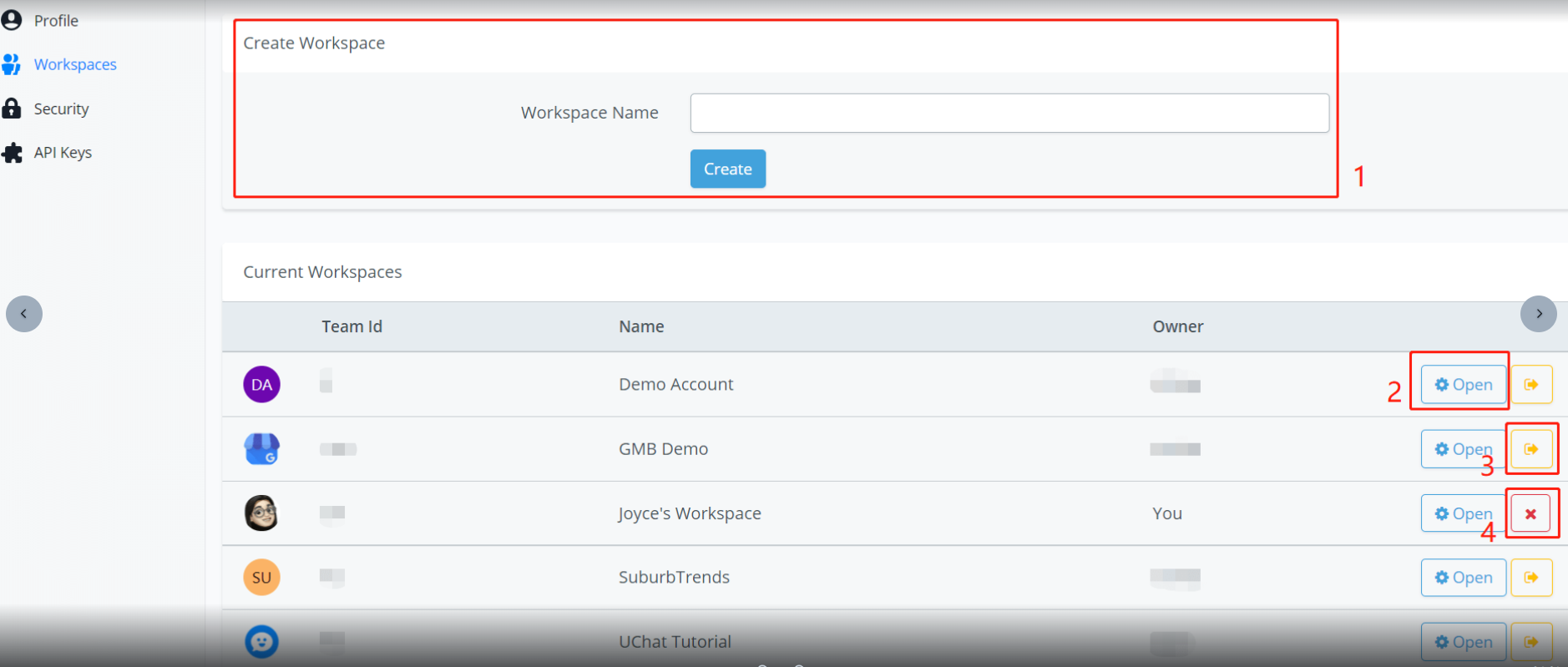
Here you can see all the workspaces you’ve joined. As marked in the screenshot, you can:
- Create new workspaces (the creator of a workspace becomes the owner)
- Switch to that workspace
- If you are not the owner of the workspace, click the yellow arrow to leave the workspace.
- If you are the owner of the workspace, you will see a red x instead. Click it to delete the workspace.
API Keys
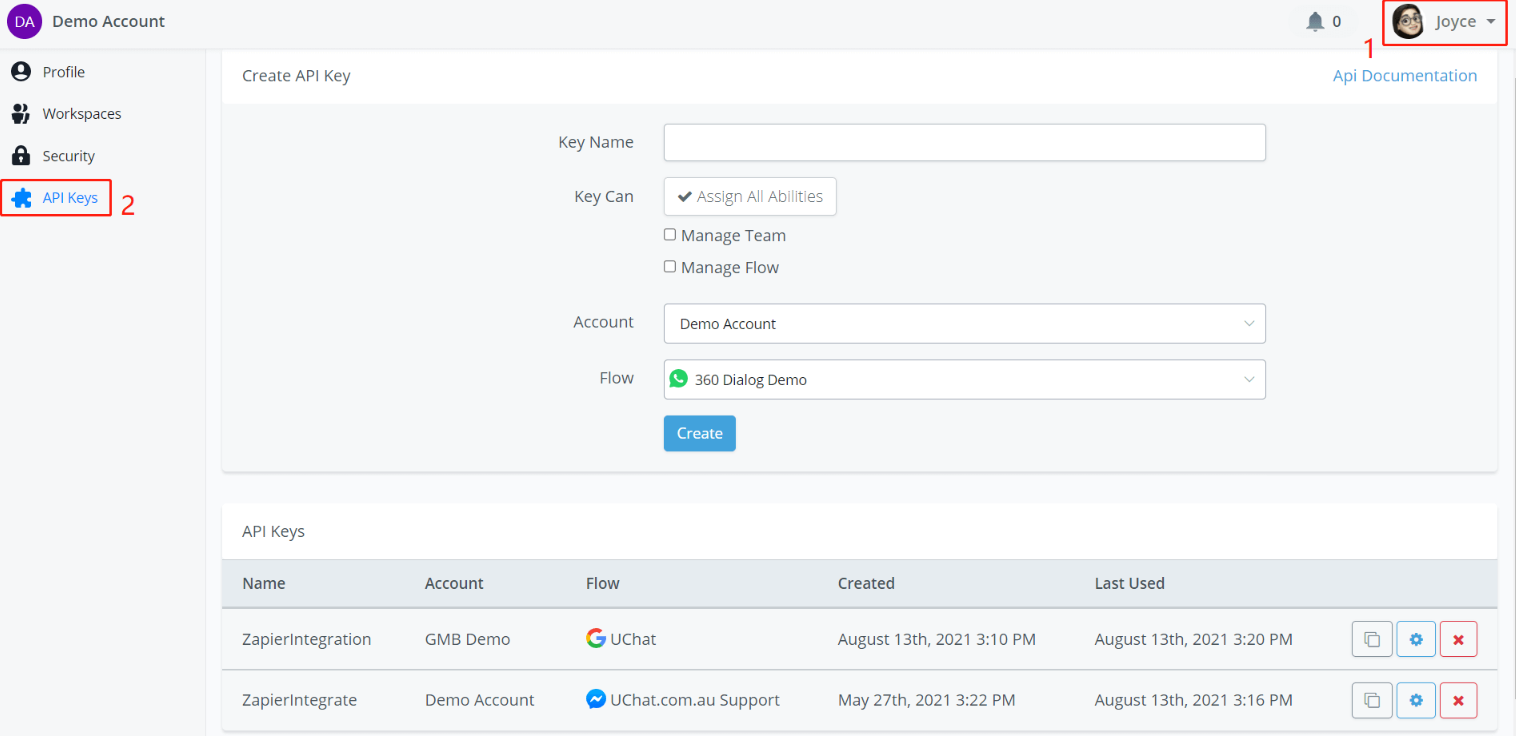
You can access the “API Keys” page from area 1 in the above screenshot.
Select a workspace and a flow to create an API key to access the flow from API calls. Messagingme.app has also integrated with many third-party automation services such as Zapier, Pabbly Connect, Integrately, Integromat, etc.
User settings
In the upper right corner, click your user name and “Your Settings”. Moreover, you can find support links here. For example, try “Quick Tour” to get familiar with your dashboard!
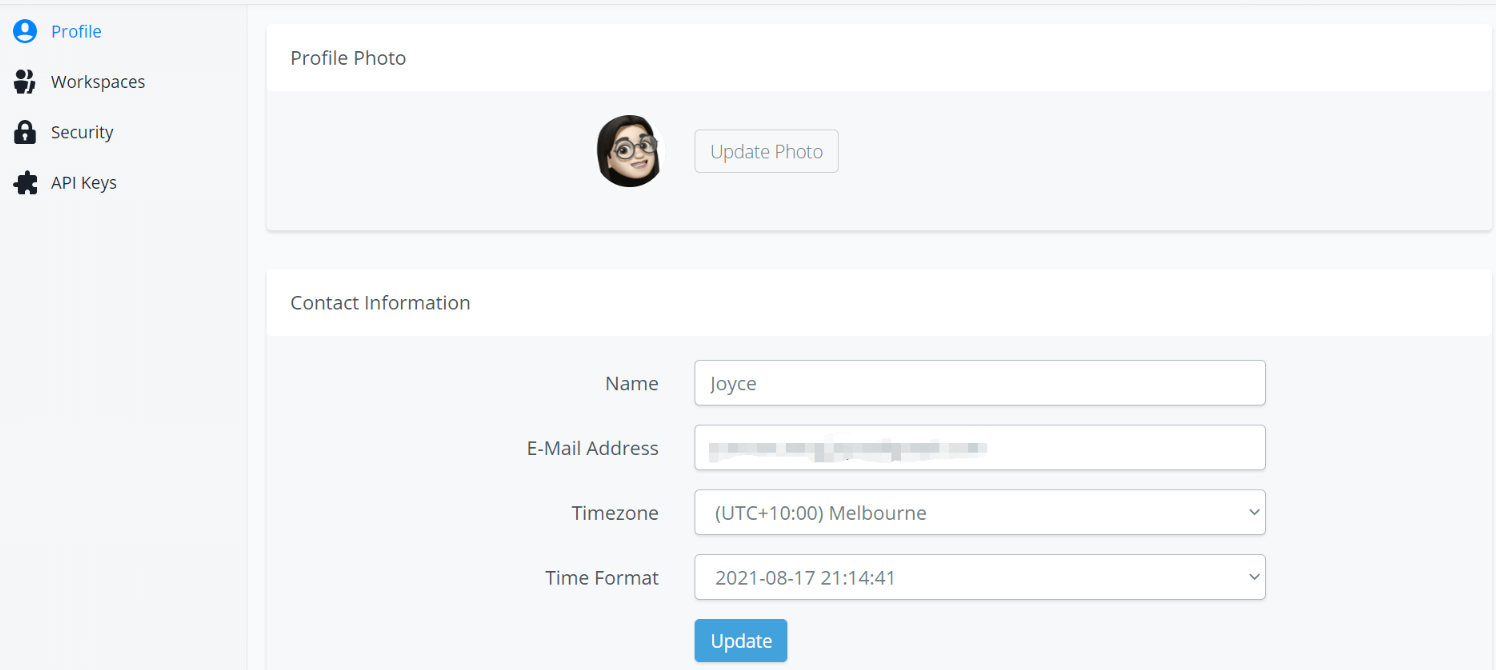
💡 TIP - The timezone setting of an Messagingme.app user will affect the time shown in the web portal such as the time shown in the conversation in your Live Chat, Error Logs, etc. See the screenshot below.
Members and roles
Each “MessagingMe.app account” is to be seen as a person/user. Members are all the people that have limited or full access to the workspace. There are 5 types of roles, Owner, Admin and Member, Live chat supervisor, Live Chat Agent.
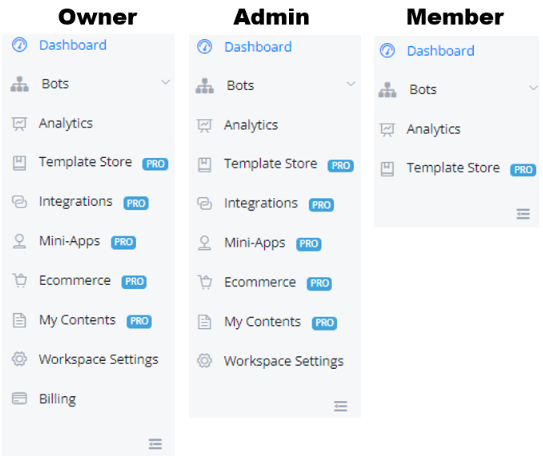
Live Chat Agent has limited access to the account. A live chat agent can
- Only live chat to the customers
- Have limited access to boards
Live Chat Supervisor has limited access to the account. A live chat agent can
- Only live chat to the customers
- Assign live chat to different live chat agent
- Access the analytics section (Custom events and reports, other analytics such as webhooks not included)
- Access to boards
Member has limited access to the account. A member can
- View and edit all flows
- Access to all Analytics
Admin has limited access to the account. An admin can
- Have all features with Member
- Manage channel connections (add numbers, agents, connect pages, etc)
- Manage all integrations
- Manage the e-commerce system
- Manage templates
- Manage mini-apps
The owner has full access to the workspace. Owner can
- Have all features with Admin
- Manage workspace profile
- Manage members in the workspace (invite, delete, edit role)
- Manage subscription and payment
Invite, Delete & Edit Role of Member
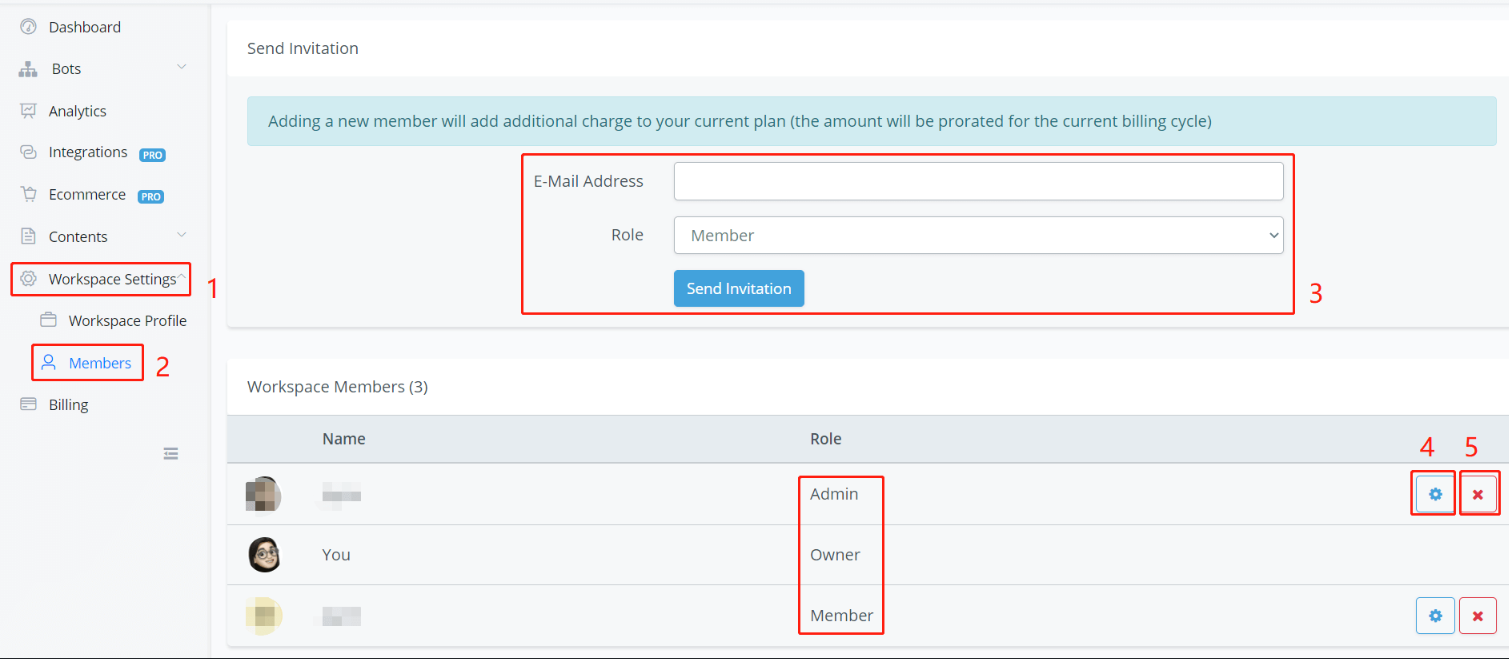
(Owner Only) Follow steps 1, 2 and 3 in the above screenshot to send out an invitation to a new member with his/her email address and role setting.
If the new member is already an Messagingme.app user, he/she can accept the invitation in the Messagingme.app notification center (the bell icon in the upper right corner, see 2 screenshots below).
If the new member is not an Messagingme.app user yet, the invitation email will contain a link to set up a new password. Once set up, the member can then also log into the workspace with their own login details.
Edit role of members
(Owner Only) You can assign a role at the time you invite new members or edit it later on the member page. Click on the gear icon to change the role of a member.