Workspace settings
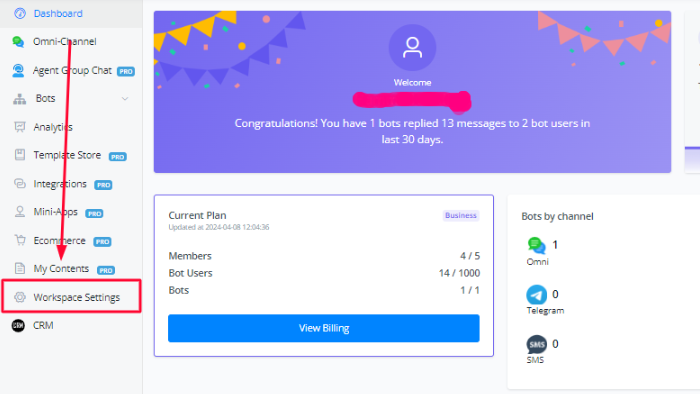
On your dashboard, at the bottom of the left column sidebar, you will find “Workspace Settings”. This tab is used for configuring settings related to workspace such as timezones, name of the workspace, inviting/removing members, managing roles and observing logs.
Profile
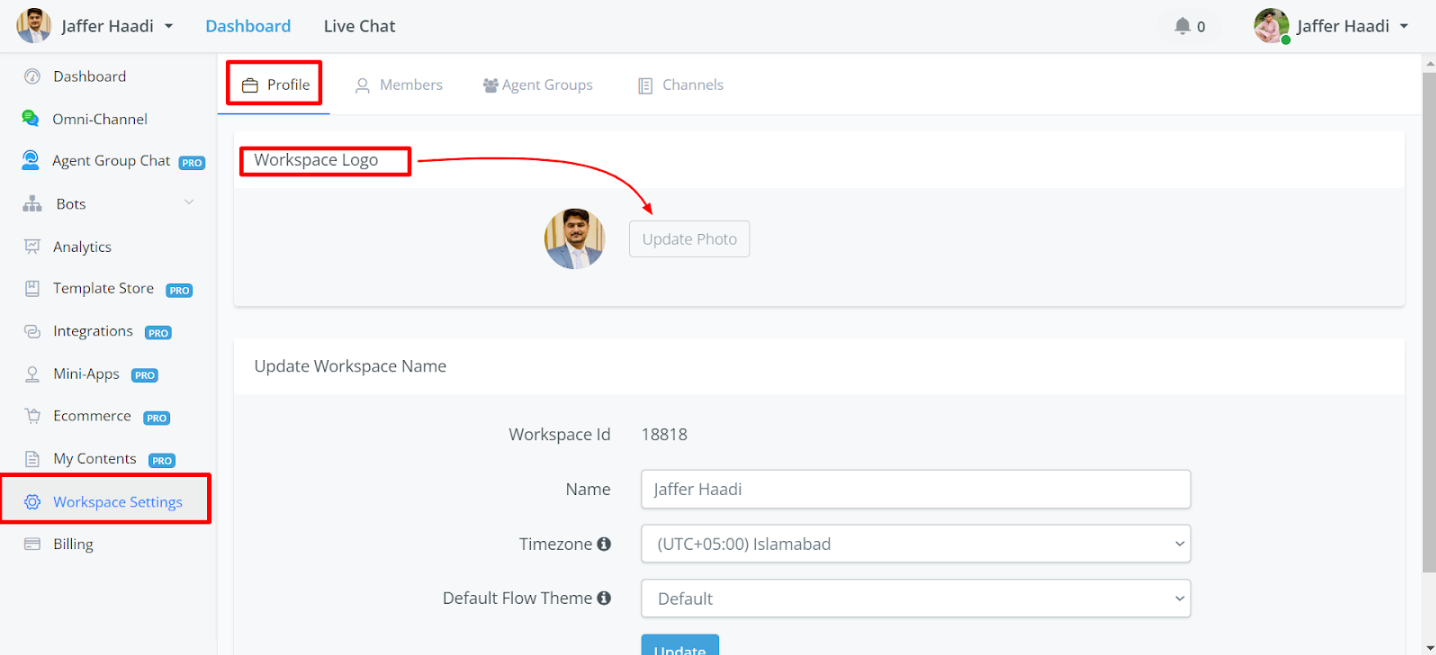
To edit the profile of your workspace, click Workspace Settings and profile in the above screenshot. You can change your logo, workspace name, timezone, and default flow theme.
💡 The timezone setting of a workspace will affect how your bot process time value. For example, the system value “BOT_CURRENT_TIME” is different when you have different timezone settings. Moreover, system value “NOW” and “TODAY” is based on bot users’ timezones, if they don’t have a timezone in profile, workspace timezone is used.
For example, the bot user in the messenger, web chat usually have user timezone. All the other channel don’t have user timezone.
Workspace Management
On the upper left corner of your dashboard, click a workspace name to switch to the workspace. By clicking 1 and 2, you will jump to the workspace management page:
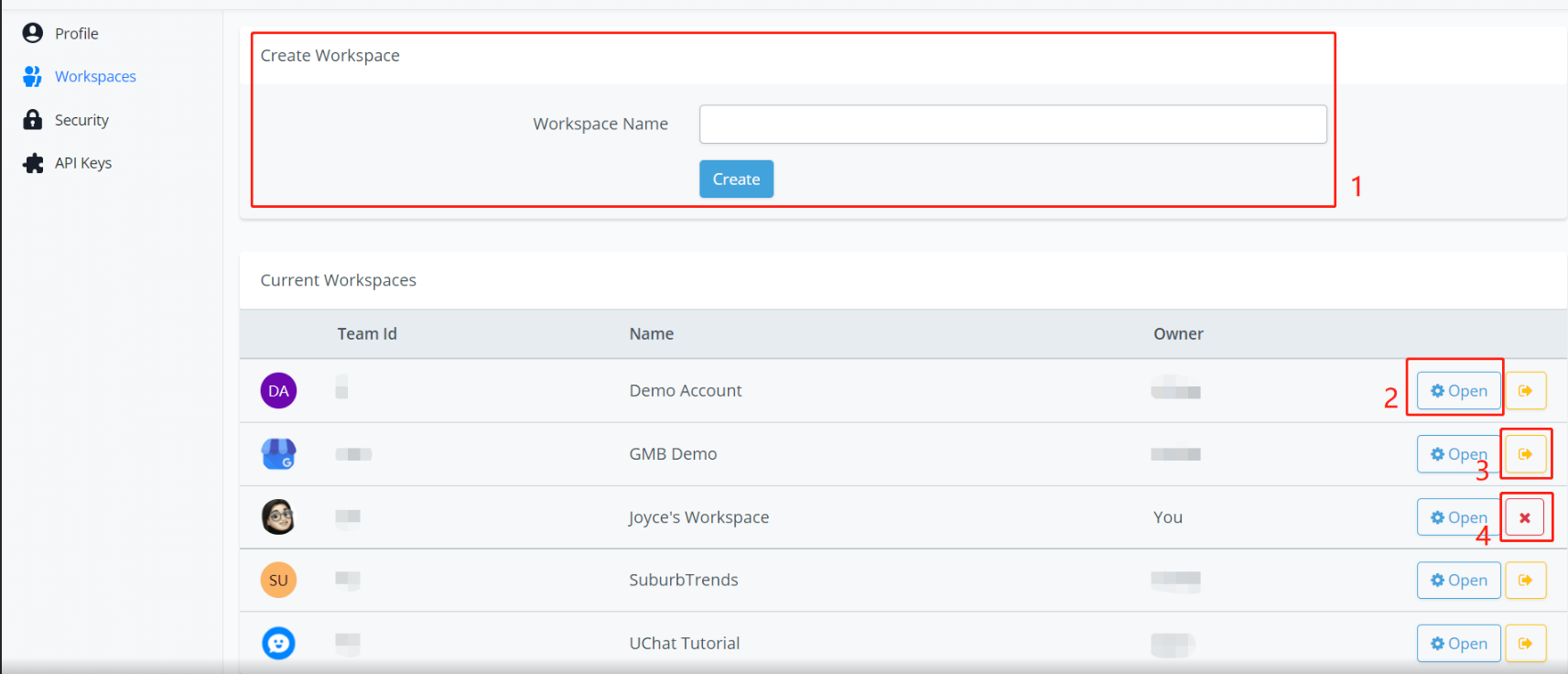
Here you can see all the workspaces you’ve joined. As marked in the screenshot, you can:
- Create new workspaces (the creator of a workspace becomes the owner)
- Switch to that workspace
- If you are not the owner of the workspace, click the yellow arrow to leave the workspace.
- If you are the owner of the workspace, you will see a red x instead. Click it to delete the workspace.
Members
Different member roles
The owner can only Invite, Delete, or edit the Role of the Member, to invite a new member with his/her email address and role setting.
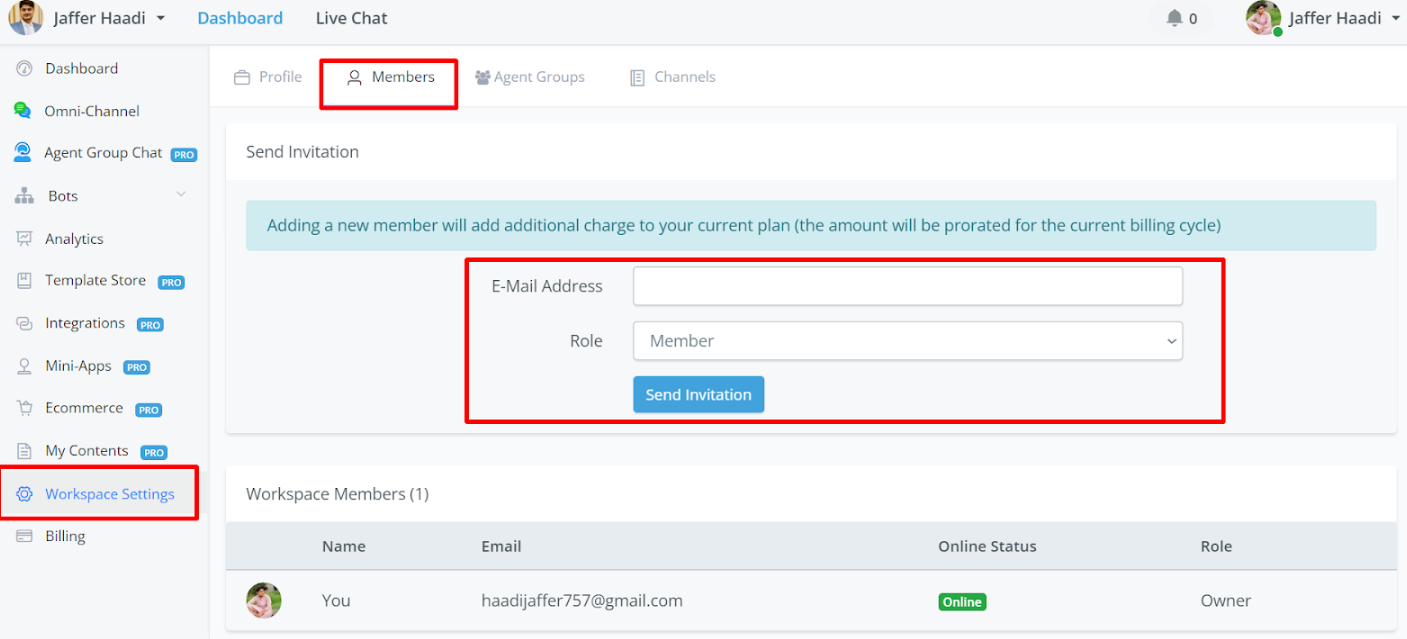
ach “Messagingme.app account” is to be seen as a person/user. Members are all the people that have limited or full access to the workspace. There are 5 types of roles, Owner, Admin and Member, Live Chat Agent, Live Chat Supervisor.
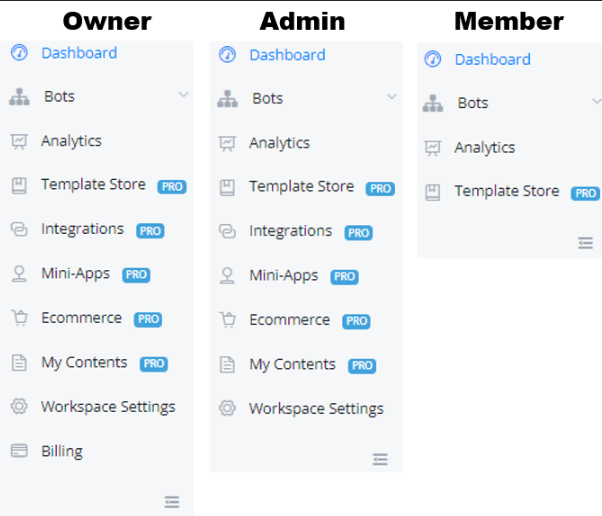
The first user who creates the workspace becomes the only owner of the workspace.
Live Chat Agent has limited access to the account.
A member can
- Access only the live chat
Live Chat Agent Supervisor has limited access to the account.
A member can
- Access only the live chat
- Manage all the live chat agent conversations
Member has limited access to the account.
A member can
- View and edit all flows
- View analytics
Admin has limited access to the account.
An admin can
- Have all features with Member
- Manage channel connections (add numbers, agents, connect pages, etc)
- Manage all integrations
- Manage the ecommerce system
- Manage templates
- Manage mini-apps
Owner has full access to the workspace.
Owner can
- Have all features with Admin
- Manage workspace profile
- Manage members in the workspace (invite, delete, edit role)
- Manage subscription and payment
Invite, Delete & Edit Role of Membe
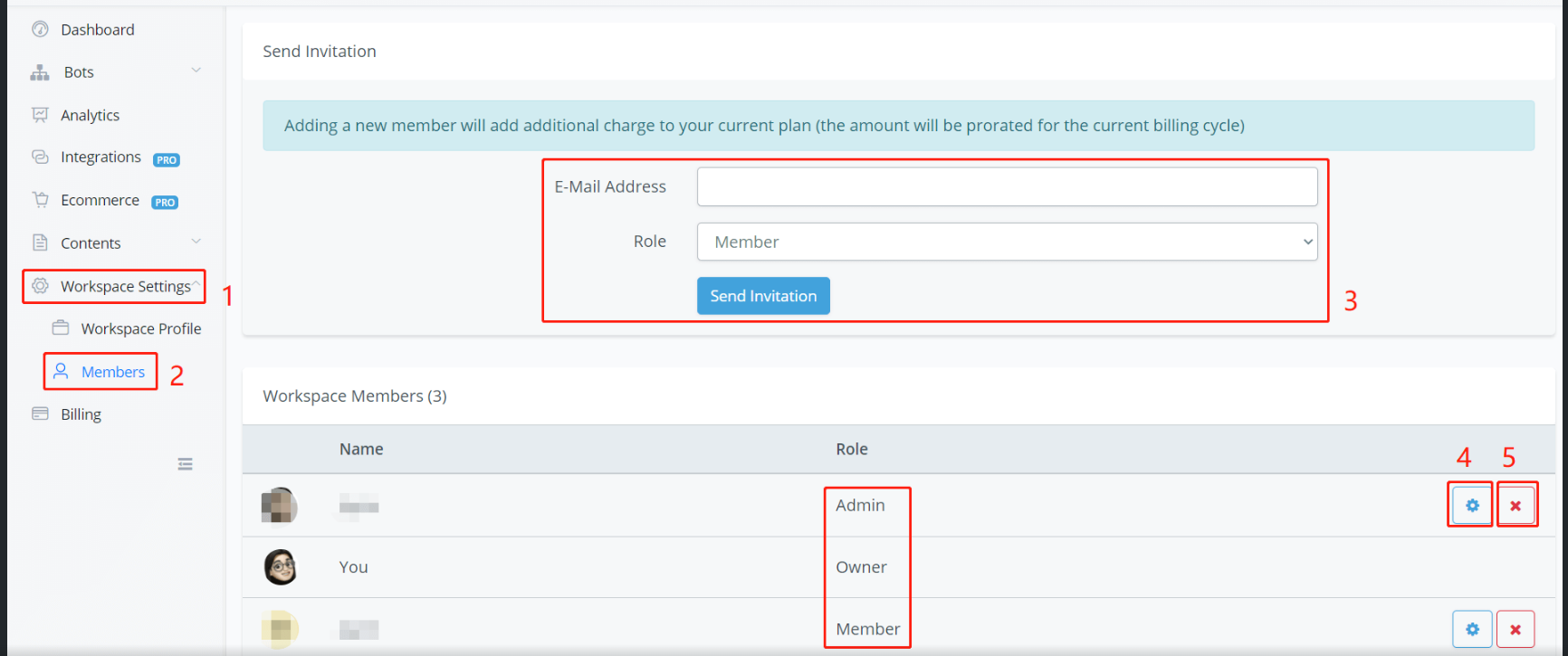
(Owner Only) Follow steps 1, 2 and 3 in the above screenshot to send out an invitation to a new member with his/her email address and role setting.
If the new member is already an Messagingme.app user, he/she can accept the invitation in the Messagingme.app notification center (the bell icon in the upper right corner
If the new member is not an Messagingme.app user yet, the invitation email will contain a link to set up a new password. Once set up, the member can then also log into the workspace with their own login details.
Edit Role of Members
(Owner Only) You can assign a role at the time you invite new members or edit it later on the member page. Click on the gear icon to change the role of a member.
Add permission control for each different member
This feature will give you the maximum flexibility to grant the appropriate access to any of your team members.
You can have more fine control of the access for your team member.
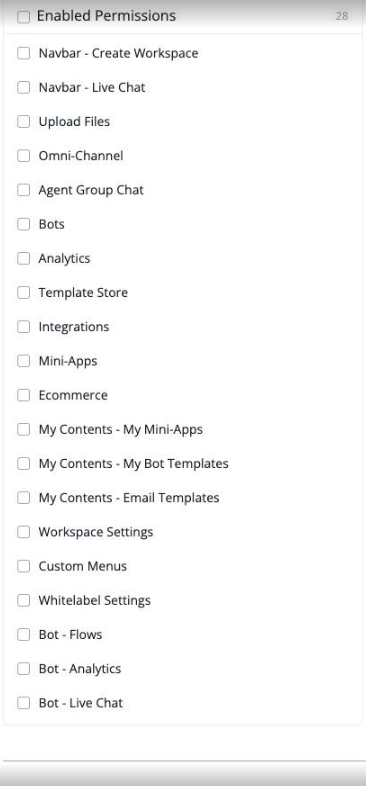
- Navbar - Create Workspace
- Nav bar - Live Chat
- Upload Files
- Omni- Channel
- Agent Group Chat
- Bots
- Analytics
- Template Store
- Integrations
- Mini-Apps
- Ecommerce
- My Content - My Mini-Apps
- My Content - My Bot Templates
- My Content - Email Templates
- Workspace Settings
- Custom Menus
- Whitelabel Settings
- Bot - Flows
- Bot - Analytics
- Bot - Live Chat
- Bot - Bot Users
- Bot - Boards
- Bot - Contents
- Bot - Tools
- Bot - Broadcasts
- Bot - Settings
- Bot - WebChat Widget
Agent Groups
Agents Groups are used to organize your live agents into different groups for assigning them conversations accordingly.
For example, one group would be responsible for handling user queries while the other group might be responsible for outreach.
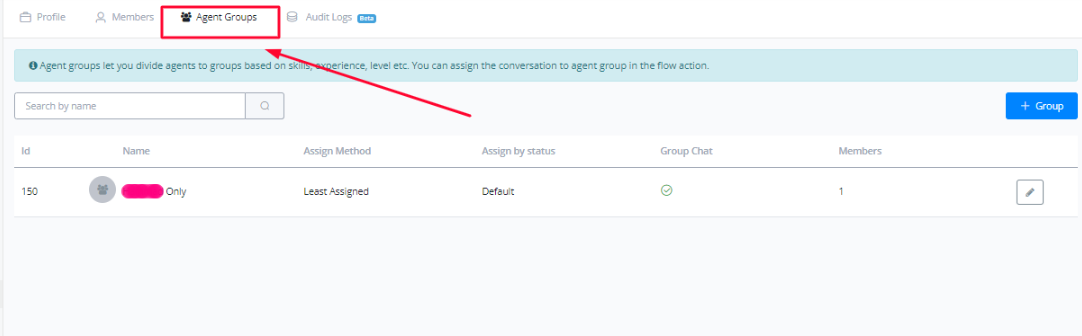
To create an agent group, click on the “+Group” button.
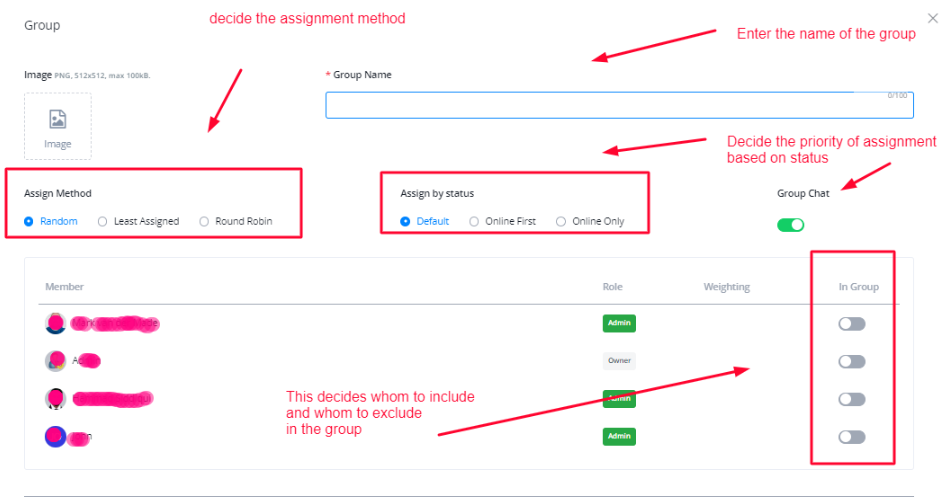
Enter the name of the group. Decide the assignment by status (this basically means whether agents which are online should be assigned a conversation first or the ones which are not). Decide the assignment method (this means what will be the order of assigning conversations, for example A Round robin will delegate equal number of conversations to each agent etc).
Enable/Disable the toggle on the right to include or exclude people from the group. The members for which this toggle is enabled will be included in the group.
At last , toggle the Group Chat for this to be enabled/disabled if you want the live agents of a certain group to be able to communicate as well.
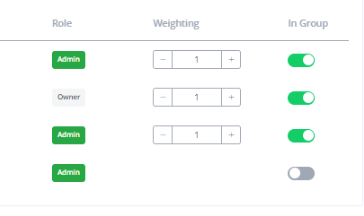
The “weighting” here manages whether certain team members are to be given priority over others when assigning conversations.
To use these agent groups, you can use the action node inside the flow builder to assign them at various stages of your flow.
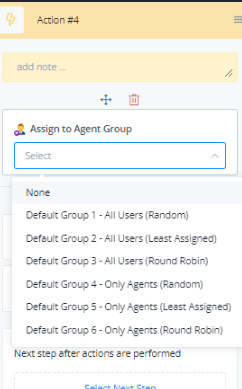
Scroll down to see your newly created agent group or chose one of the already available ones.
Conversation
The new Conversation Mode feature is designed to provide a comprehensive and detailed view of customer support interactions. With this update, you can track and analyze conversations more effectively, gaining complete reports on conversation performance.
The Conversation Mode allows you to view crucial information on conversation management, including:
- Number of Assigned and Resolved Conversations: Track how many conversations have been assigned to agents and how many have been successfully resolved.
- Agent Response Time: Evaluate how quickly agents are responding to assigned conversations.
- Resolution Time: See how much time is being spent resolving each conversation.
These detailed reports help optimize team performance and improve customer support efficiency. Explore Conversation Mode to take full advantage of these new features and ensure high-quality service.
Step-by-Step Guide to Enable Conversation Mode
1. Accessing Workspace Settings
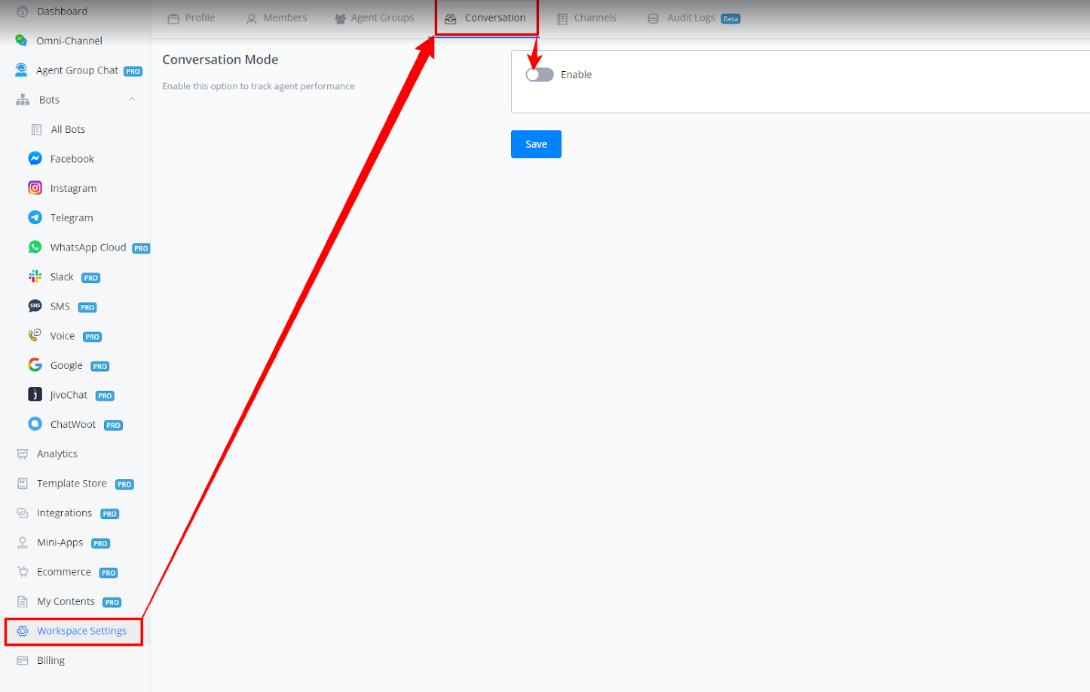
In the main dashboard, click on Workspace Settings in the left menu to access workspace settings.
2. Enabling Conversation Mode
In the top menu, select the Conversation tab. Then, enable the Conversation Mode by clicking the Enable button. Set the conversation session timeout as needed.
3. Setting Agent Office Hours
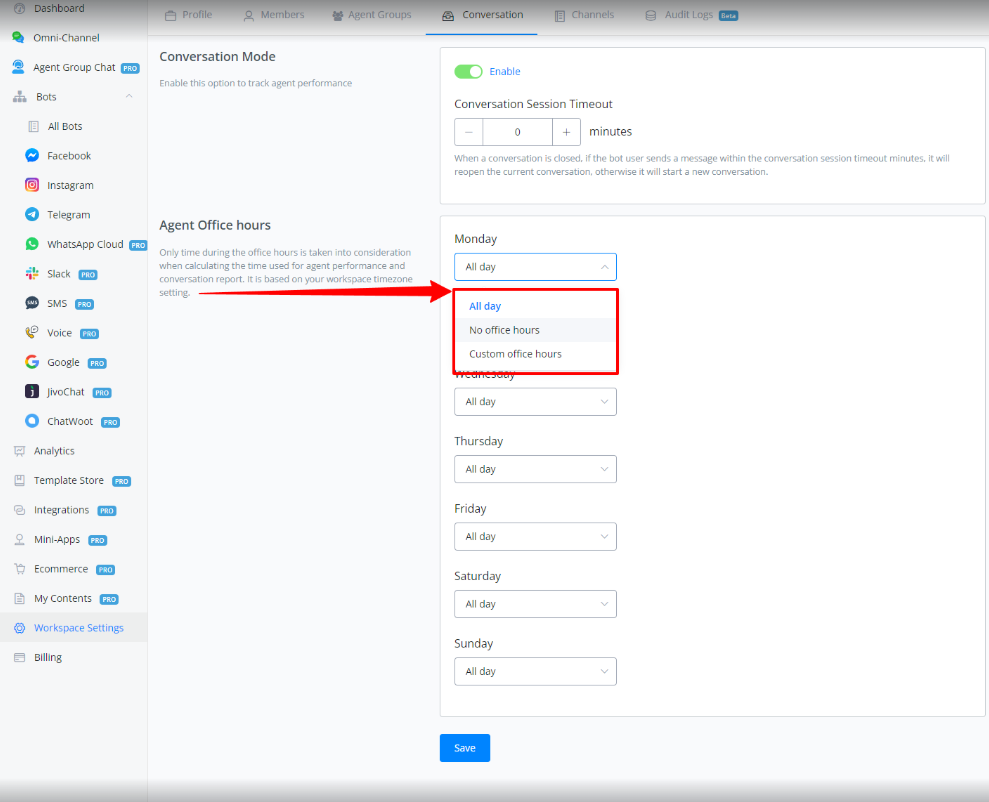
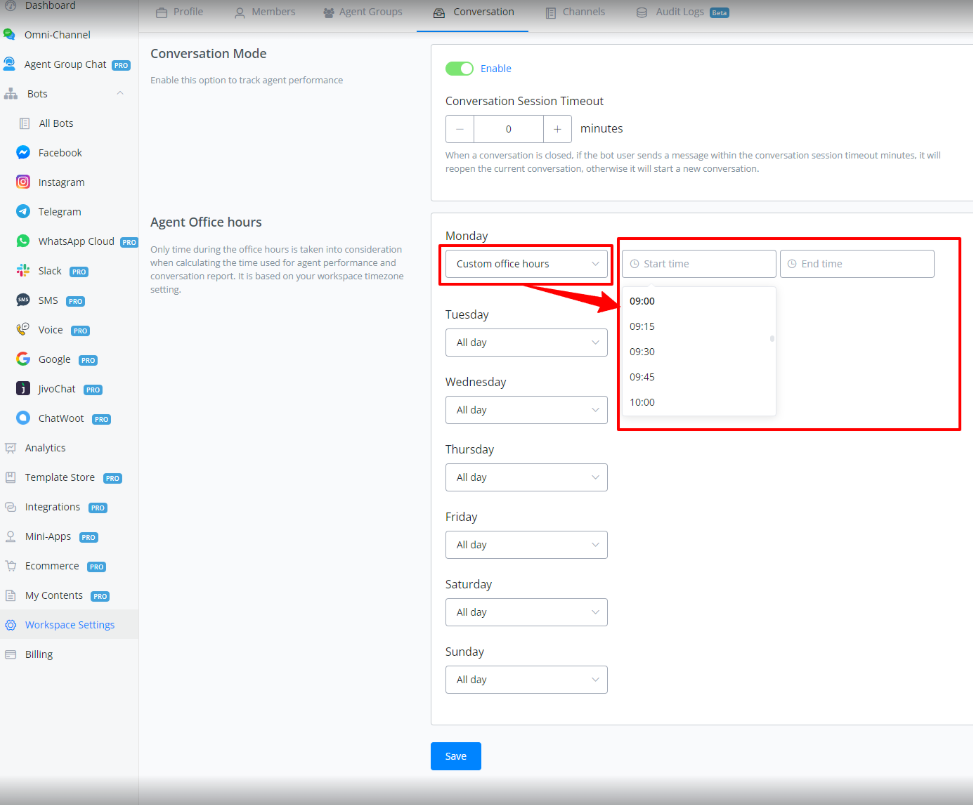
In the same Conversation tab, configure the agent office hours in Agent Office Hours. You can set custom hours for each day of the week. Click on each day and select Custom office hours to set the start and end times.
Reports
Once you have enabled the conversation mode, you will see more report from “analytics” tab in every of your channel.
Channels
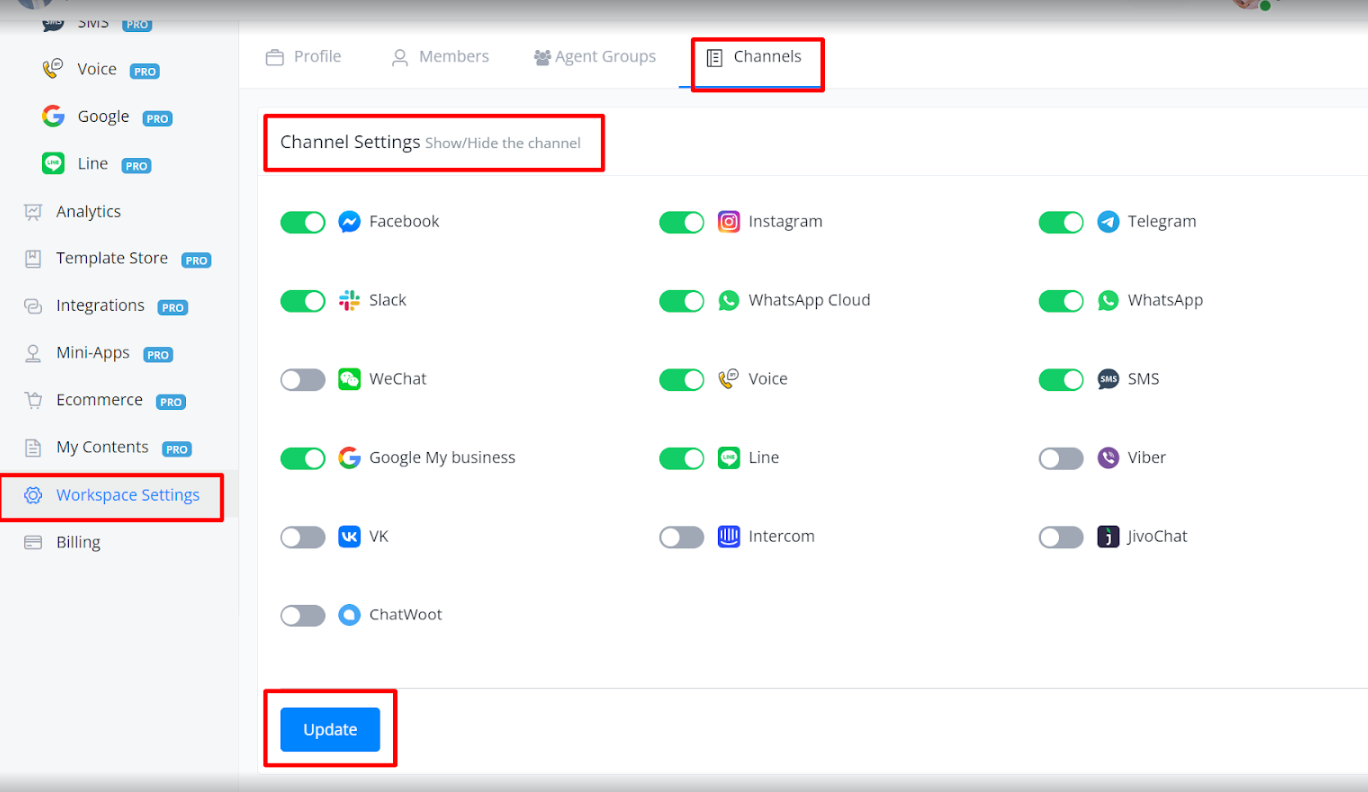
You can hide and show the channel that is displayed on the left-hand menu.
Audit Logs
Audit logs gives the users ability to keep track of the changes happening across their workspace. The information includes which team members switched to workspace, what flows were changed, which nodes were deleted/created and who made the changes.
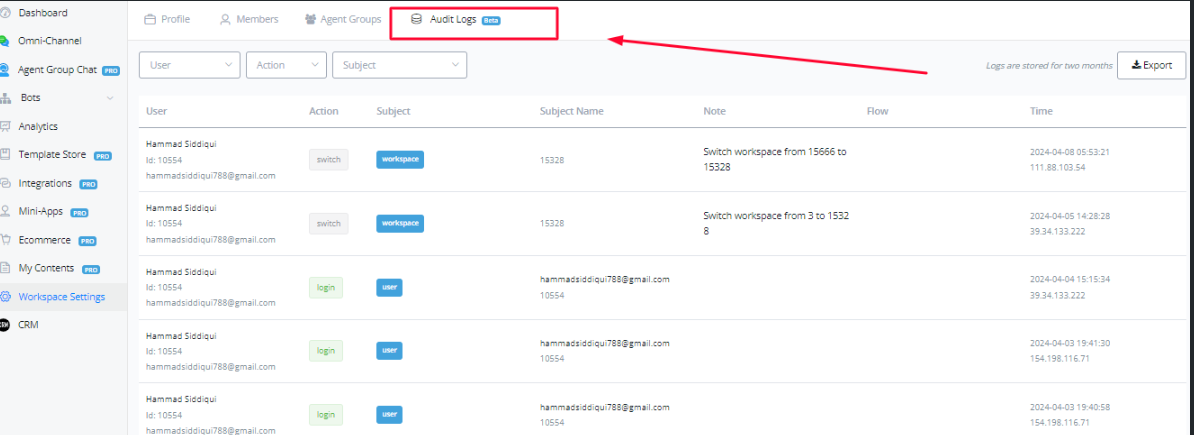
Audit logs gives a comprehensive analysis of the activity happening across the workspaces and provides an extra layer of security and accountiblity when handling a team of members.
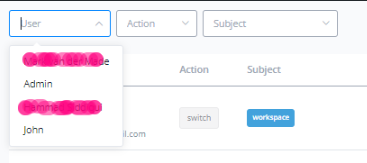
You can use the filters at the top-left of the interface for filtering by users, action and the subject to monitor specific changes happening to a flow or within workspace.
| Action | Explanation |
|---|---|
| create | This action means that a node is being created, such as an action node to perform an action or a send message node to send a message |
| delete | This means that something is deleted. This can be a node or a trigger or a CUF or bot user |
| install | This means a template or a miniapp is installed on the bot. |
| link | This means an integration was linked with the workspace. An example would be that of an SMTP connection or OpenAI integration |
| login | This means a user was logged into the workspace |
| logout | This means a user was logged out of the workspace |
| switch | This means a user switched from one workspace to another |
| system | This means there has been an |
| uninstall | This means a miniapp is uninstalled from the workspace |
| unlink | This means an integration has been unlinked from the workspace |
| update | This means a node has been updated, an example would be to update the text of a Send Message node |
| Subject | Explanation |
|---|---|
| addon | indicates when the addon is added |
| agent_segment | Segment used by agent for Global search |
| board | indicates a change in the board |
| board_column | Indicate a change in the board column |
| bot | Indicate a change in the bot |
| bot_action | Indicate a change in the bot action |
| bot_addon | Indicate a change in the bot addon |
| bot_comment | Automation -> Comment keyword |
| bot_event | Contents -> custom event |
| bot_fb_ads | Indicate a change in the Facebook Ads Payload |
| bot_fb_feedback | Contents -> Customer feedback |
| bot_fb_lead_form | Indicate a change in the FB Lead Form |
| bot_field | Indicate a change in the bot filed |
| bot_intent | Automation -> Intents |
| bot _keyword | Automation -> Keywords |
| bot_lang | Indicate a change in the bot language |
| bot_menu | Indicate a change in the bot Menu |
| bot_message | Send message node |
| bot_node | Indicate a change in the bot node |
| bot_question | Question node |
| bot_report | Tool -> Custom report |
| bot_segment | Bot users -> Segment |
| bot_sequence | Automation -> Sequence |
| bot_shorcut | Tools -> Shortcut |
| bot_tag | Indicate a change in the bot tag |
| bot_template | Enables logging for template-related actions such as creation, deletion, and updates. |
| bot_template_install | Updates on Installed template, such as can edit, can view, disable auto update… |
| bot_template_link | For generate one time link |
| bot_tester | Tools -> Tester |
| bot_trigger | Automation -> Trigger |
| bot_user | Bot User |
| bot_widget | Tools -> Widget |
| broadcast | Indicate sending the broadcast |
| calendly | Integration -> Calendly |
| Change email | |
| chatwood | Bot -> chatwood |
| chatwood_agnet | Integration -> chatwood agent |
| Claude | Integration -> claude |
| Closing note | Bot -> Contents -> Closing Notes |
| Cloudinary | Indicate Connection with Cloudinary |
| crm_v1 | Integration -> GHL CRM v1 |
| custom menu | Partner -> custom menu |
| data_store | Data store (rows and records) actions with Storage like MySql |
| discount_code | Ecommerce -> discount code |
| email_template | My Contents -> Email template |
| Bot -> Facebook | |
| facebook_ads | Enables logging for removing of Facebook ads Account |
| facebook_business | Enables logging for removing of Facebook business Account |
| facebook_group | Enables logging for removing of Facebook group |
| facebook_agent | |
| gemini | Enables logging for Google Gemini actions Integration (update) and removal (delete) |
| gohighlevel | Integration -> GHL |
| google_business | Integration |
| google_business_message | Bot -> Google business message |
| google_dialogflow | Integration |
| google_gmail | Integration |
| google_map | Enables logging for Google Map actions Integration (update) and removal (delete) |
| google_sheet | Integration |
| google_tag_manager | Integration |
| inbound_webhook | Tools -> Inbound webhook |
| Bot | |
| intercom | Bot |
| intercom_agent | Integration |
| jivochat | Bot |
| jivochat_agent | Integration |
| line | Bot |
| live_chat_webhook | Integration |
| mailchimp | Integration |
| mapbox | Integration |
| mark email deleted | |
| mark email verified | |
| messagemedia | Integration |
| mini_app | Enables logging for board-related actions such as creation, deletion, updates and install. |
| mongodb | Integration |
| mysql | Integration |
| node | Enables logging for node-related actions such as creation, deletion. |
| nodes | Enables logging for nodes-related (Block actions) actions such as pasted, deletion. |
| one_time_link | Template -> create/delete one time link |
| openai | Enables logging for OpenAI-related actions Integration (update) and removal (delete) |
| openai_embedding | Integration -> Open AI |
| openai_system_message | Integration -> Open AI |
| otn_topic | Contents -> Notification Topics |
| paypal | Integration |
| persona | Enables logging for personna actions such as creation, deletion, and updates. |
| pgsql | Enables logging for PostGreSQL actions Integration (update) and removal (delete) |
| phone_number | Integration |
| plan | Partner -> change plan |
| product | Ecommerce -> Product |
| product_tag | Enables logging for product tag actions such as creation, deletion, and updates. |
| product_type | Enables logging for product tyoe actions such as creation, deletion, and updates. |
| product_variant | Enables logging for product varient actions such as creation, deletion, and updates. |
| product_vendor | Enables logging for product vendor actions such as creation, deletion, and updates. |
| s3storage | Enables logging forS3Storage actions Integration (update) and removal (delete) |
| sendgrid | Integration |
| shop_collection | Ecommerce |
| shop_location | Ecommerce |
| shop_order | Ecommerce |
| shop_setting | Ecommerce |
| Shopify | Integration |
| signalwire | Integration |
| slack | Bot |
| slack_agent | Integration |
| slack_webhook | Integration |
| sms | Bot |
| smtp | Integration -> SMTP |
| stripe | Integration |
| sub_flow | Flow -> Sub flow |
| team | create/delete Workspace |
| team_folder | Folder for workspaces level contents, such as labels |
| team_group | Agent group |
| team_label | Content-> labels |
| telegram | Bot |
| telnyx | Bot |
| twilio | Integration |
| user | User -> login, logout |
| user_addon | Workspace add/remove member |
| user_field | Content -> user field |
| Viber | Bot |
| videosdk | Integration |
| vk | Bot |
| voice | Bot |
| Vudu | Integration |
| waapi | Bot |
| Bot | |
| Bot | |
| whatsapp_channel | link/unlink WhatsApp multiple channel to the same bot |
| whatsapp_cloud | Bot |
| whatsapp_flow | Content -> Whatsapp flow |
| whatsapp_template | Content -> Whatsapp template |
| woocommerce | Integration |
| workspace | Partner create workspace |